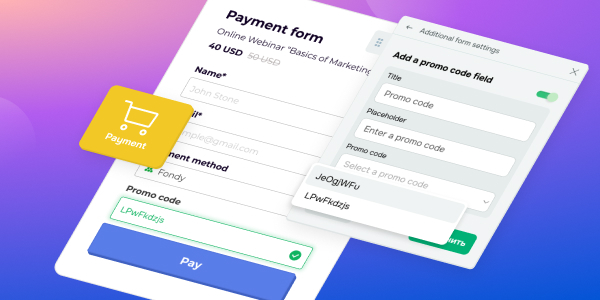
Add a promo code field to your website’s shopping cart or payment form

Newsletter Archive
logo
logo
banner
banner
caleb
caleb

Caleb Smith

Product Marketer


“You can now create promo codes in your CRM system and add a field for them right to your website’s shopping cart or payment form. When a customer applies a code, the system automatically validates it and updates the total amount with the relevant discount.

promo-code
promo-code

This will help you do the following:

    • Boost sales. Allow customers to unlock discounts during checkout to speed up purchases and increase revenue.
    • Tailor promo codes for diverse audiences. Build smarter discounts for newcomers, long-time customers, and those needing a little nudge to purchase.
    • Create urgency without losing profit. Add expiration dates or usage limits to your promo codes to make them more appealing and encourage customers to take action.
    • Get a full picture of your promo codes’ performance. Track your promo codes in the “Payments” tab, CRM deals, and contact cards to scale your most efficient offers.

    A must-have feature to help you make the most of Black Friday, Cyber Monday, and the year's busiest season.

    Create your first promo code in no more than 2 minutes

    1. In your CRM system, go to the “eCommerce” tab → “Promo codes,” and click “Add promo code.”
    2. Type in a custom promo code or generate one automatically, and set a fixed or percentage discount.
    3. If needed, limit your code's validity and usage count, and save it.
    4. Navigate to your website’s shopping cart or payment form’s additional settings, add a promo code field, and choose from the available codes.
    Create a promo code
    icon
    icon

    If you need help with setup or have any other questions, contact our tech support team — we're in touch 24/7.

    Best regards, Caleb Smith
    sendpulse.com

    You received this email because you are a customer of SendPulse.

    Unsubscribe

    Sent via

    SendPulse