WhatsApp chatbot flow links, CRM contact cards in “Conversations,” and more!

Newsletter Archive
logo
logo
banner
banner
caleb
caleb

Caleb Smith

Product Marketer


“We’re constantly upgrading our chatbot builder to meet your needs and help you achieve your business goals. That's why you can now create direct links to specific WhatsApp chatbot flows and view all CRM contact attributes right in the “Conversations” tab. On top of that, you can now use variables in the “Last activity” filter and automate course enrollments using specific pricing plans.

Discover all the updates below!”

banner
banner

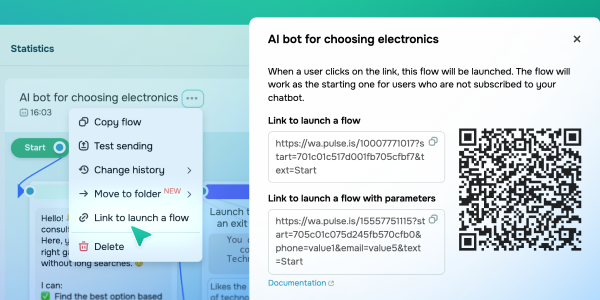
Direct links to WhatsApp chatbot flows

In the “Bot Structure” tab, you can now create direct links to specific flows within your WhatsApp chatbot. These links open a WhatsApp chat with a pre-filled “Start” message (or any custom text you set) that users can send to launch your selected flow.

This will help you instantly direct potential customers to relevant conversations and significantly increase your conversion rates. To give you an idea, your ad’s “Get a discount” button can lead to a flow where your chatbot offers a promo code for a certain product category and invites users to shop.

You can also add variables and UTM tags to these links, including subscription source, campaign name, product category, and other relevant details. Once a user subscribes to your chatbot, this information is automatically saved to the “Audience” tab, empowering you to:

  • analyze the performance of different engagement channels;
  • segment contacts based on tags and variables;
  • personalize your future interactions.
Create a chatbot flow link
banner
banner

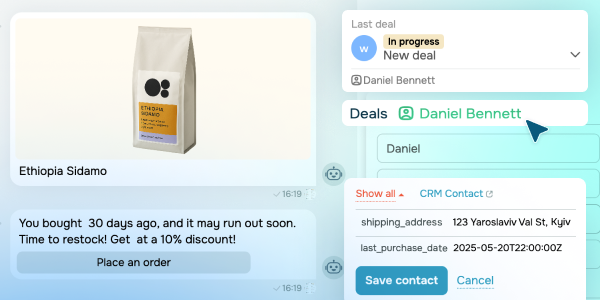
CRM contact cards in your chatbot “Conversations”

In the CRM sidebar within “Conversations,” you’ll now see a dedicated tab that shows your customer’s name along with all filled-in contact attributes, like city, interests, loyalty program status, and more.

You can also access the full contact card from there to view your entire interaction history.

It helps you better understand conversation context to deliver more personalized messages. To illustrate, if you see the “Loyal” customer status in the CRM system, you can immediately engage them with a special offer and close your deal faster.

View contact cards
banner
banner

New features in flow elements

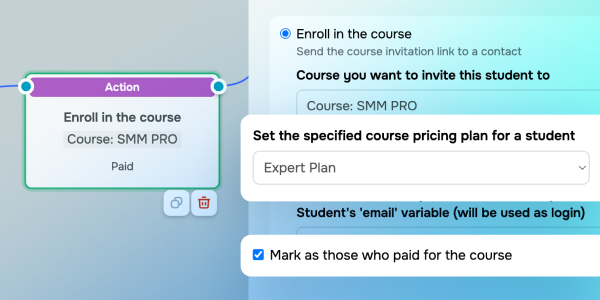
If your online course offers multiple pricing plans, you can now use your chatbot to automate student enrollment using specific pricing plans. In the “Action” → “Enroll in the course” element, simply select the plan your student should be enrolled under. If it requires payment, you can also mark it as paid.

Your students will automatically receive the exact level of access they paid for, helping you cut down on errors and save time.

Set it up
banner
banner

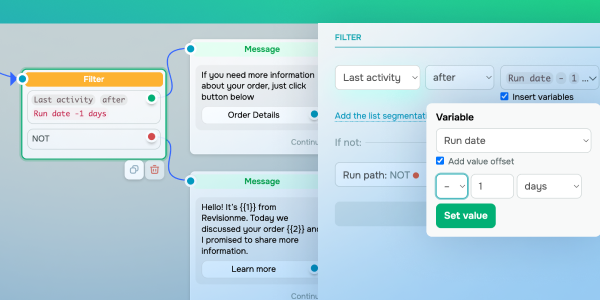
The “Last Activity” condition in the “Filter” element now supports variables instead of fixed dates. You can now automatically track your subscribers' last interaction date and seamlessly route them to the right flow branch.

This is particularly beneficial for WhatsApp chatbots as they can now automatically decide whether to send a free-form message or a template message. Say a subscriber has messaged 25 hours ago — your chatbot will instantly switch to the template message branch of your flow.

Try it out

DeepSeek Chat model for your chatbots

The “AI Step” element now supports the DeepSeek Chat model for response generation. You can use it to address FAQs or help customers choose the right products automatically — no human involvement needed.

To connect this model, add a token directly in the “AI Step,” inherit the token from your chatbot settings, or use free requests during the trial period.

Try it out
icon
icon

If you need help with setup or have any other questions, contact our tech support team — we're in touch 24/7.

Best regards, Caleb Smith
sendpulse.com

You received this email because you are a customer of SendPulse.

Unsubscribe

Sent via

SendPulse