Inbox integration through IMAP, currency settings, and digital products

Newsletter Archive
SendPulse
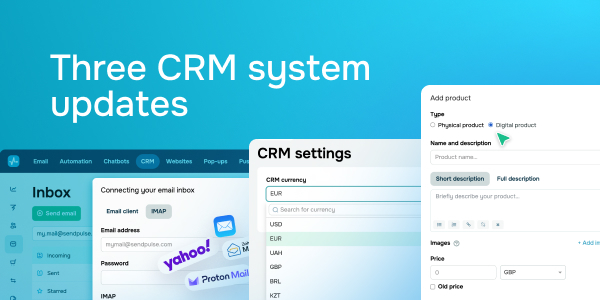
Three CRM system updates
Caleb Smith

Caleb Smith

Product Marketer


"We have upgraded our CRM system to elevate your marketing strategy. Now you can use IMAP to connect your inbox, set up a preferred currency for finance operations, and add digital products to your SendPulse-powered online store. Read on to learn more about our major updates"

Inbox and CRM system integration through IMAP

Inbox and CRM system integration through IMAP

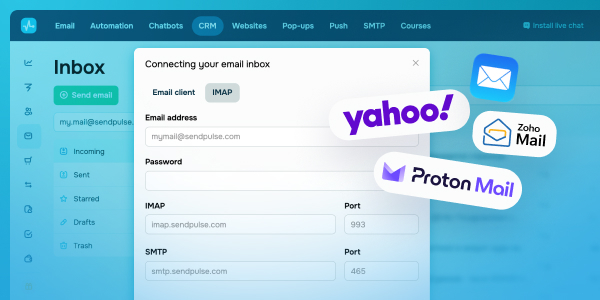
You can now sync your inbox with our CRM system using IMAP. This integration will help you:

  • View, send, search, and delete your emails without leaving the CRM system; 
  • Deliver emails from synchronized sender email addresses;
  • Automatically create and assign deals and contacts once you send or receive emails;
  • Streamline sales and communication without switching between platforms.

How to integrate your inbox with our CRM system through IMAP

  • Go to your email client's IMAP settings;
  • Share IMAP access with SendPulse;
  • Create a password;
  • Go to the “IMAP” tab and type in your credentials.


❗Please note: Access requirements may vary depending on your email client. You can learn more about popular email clients’ server settings in our knowledge base.

    Learn more
    Currency settings

    Currency settings

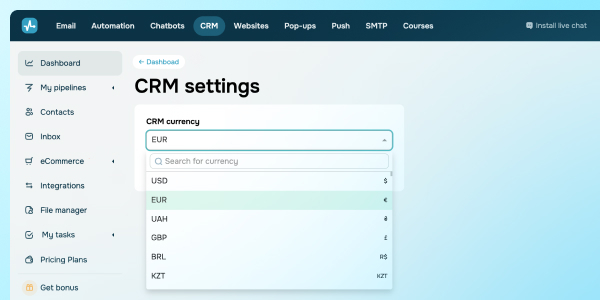
    Previously, your currency was set automatically in your account settings. Now you can set it manually in two steps:

    Step 1. Go to CRM system settings.

    Step 2. Select your preferred currency from the dropdown list. 

    Once you select a currency, the system will automatically apply it to future transactions, which helps simplify finance operations.

    Set a currency
    Digital products in your online store

    Digital products in your online store

    You can now sell eBooks, courses, webinars, and other digital products in your SendPulse-powered online store. 

    Deliver a seamless shopping experience with our features:

    • Include product previews. Share product demo versions, such as book excerpts or video clips, to encourage customers to buy. To include a preview file or link, add it to your digital product settings.
    • Offer download options. To enhance users’ shopping experience, add instant download links or files so that they can get your products immediately after paying.

    How to create a digital product

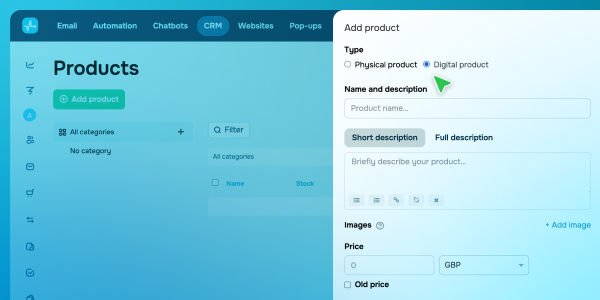
    • Go to the “eCommerce” tab → “Products”;
    • Click “Add product”;
    • Select the “Digital product” type.


    💡 Learn more about how to add digital products to your online store in our knowledge base.

      Create a digital product
      icon

      If you need help with setup or have any other questions, contact our tech support team — we're in touch 24/7.

      Best regards, Caleb Smith

      sendpulse.com

      You received this email because you are a customer of SendPulse

      Unsubscribe

      Sent via

      SendPulse