đź”” Send website form data to your chatbots

Newsletter Archive
SendPulse
600-en_d5e0e65e
Caleb Smith

Caleb Smith

Product Marketer


“Learn how to strengthen the integration between your website and chatbots. Now you can also try our new animation effect and select a Facebook Pixel event.”

Pass subscription form data to chatbots

Pass subscription form data to chatbots

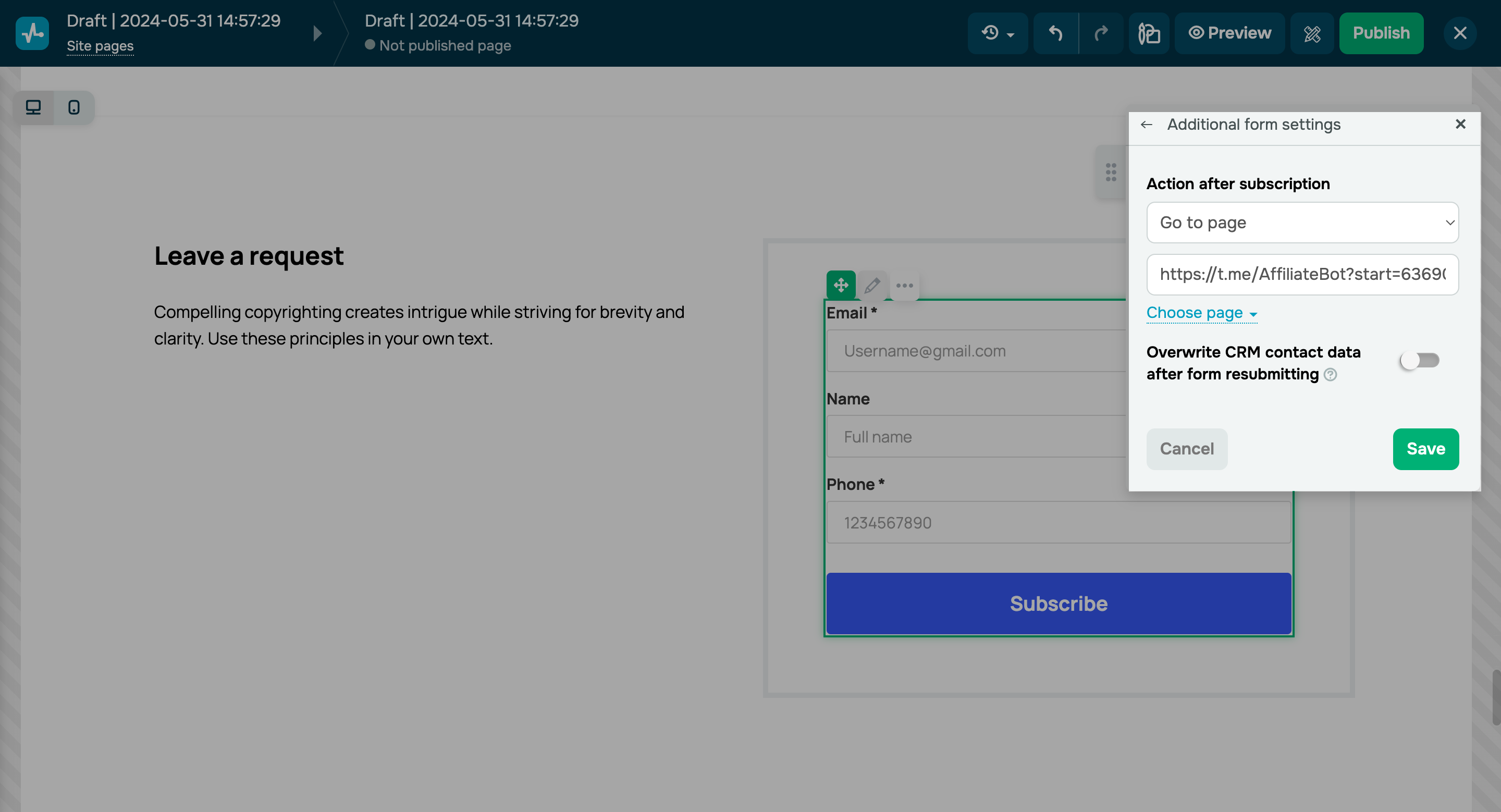
From now on, after a user fills out a subscription form on your website, they can be automatically redirected to your chatbot. All the data they enter will be sent to the CRM system and your chatbot audience to enhance automation and segment your subscribers.

Here’s how it works:

  • Add variables to your chatbot audience.
  • Create a form on your website and name its fields to match the variables you created.
  • In additional form settings, select the "Go to page" action, insert the link to the flow that should run after a user fills out and submits your form, and save the changes.

Once users submit your form, they will be redirected to your chatbot. Their data will be saved in the CRM system and the chatbot.

Set it up
New scrolling ticker effect for website elements

New scrolling ticker effect for website elements

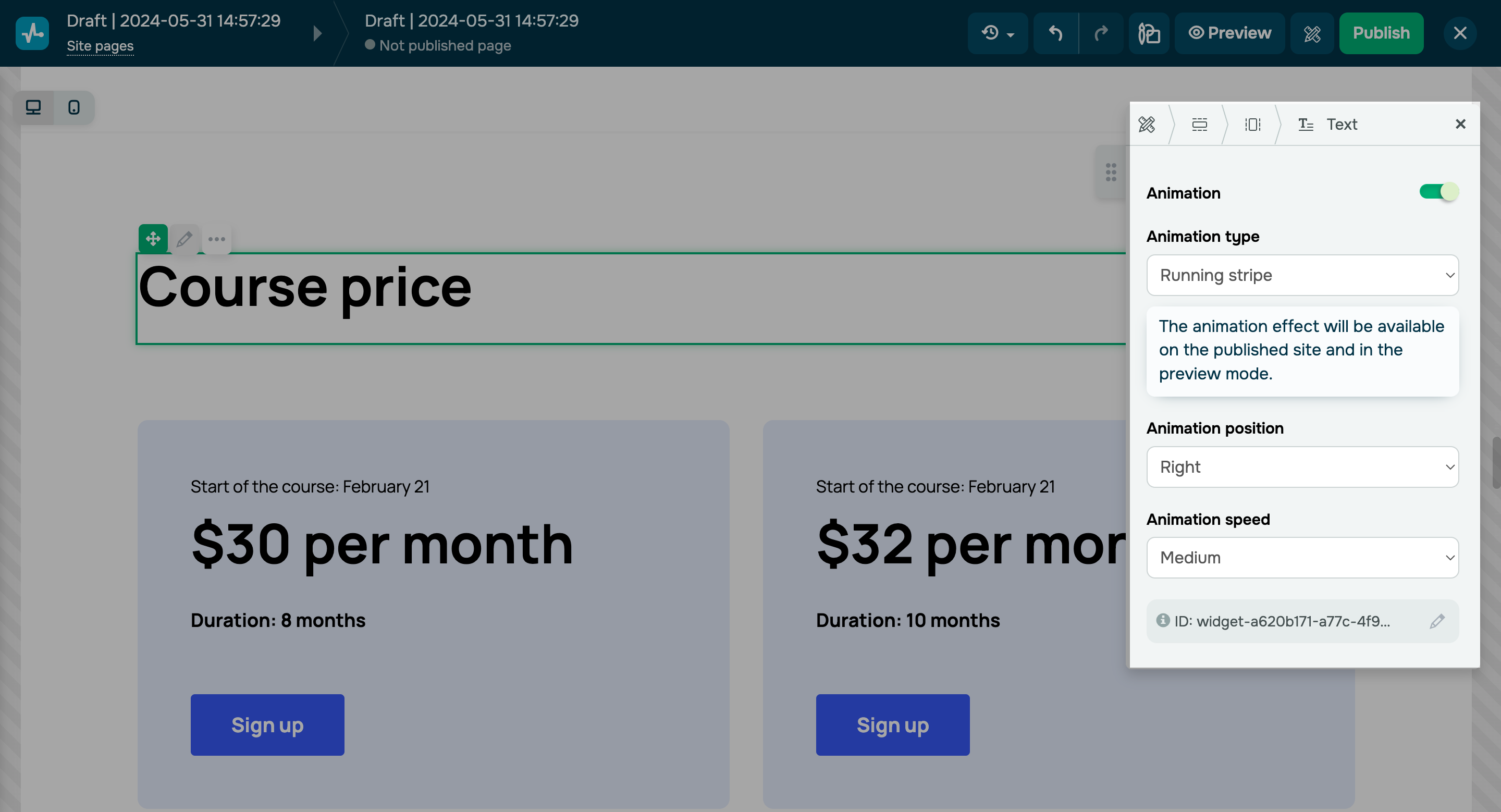
Use our new animation option to create a scrolling ticker on your website and attract visitors’ attention to your special offer or important information.

To create a scrolling ticker:

  • Add the Text widget with the text you want to animate.
  • Turn on the “Animation option” toggle and select the “Scrolling ticker” type.
  • Set up your animation direction and speed and save the changes.

The scrolling ticker animation effect will be visible in the preview mode and on the published page.

Set up your own Facebook Pixel event in our website builder

Set up your own Facebook Pixel event in our website builder

Previously, Facebook Pixel events were generated automatically. 

Now you can set up Facebook Pixel bio link page events that correspond to your advertising campaign goals. 

Events can be sent during successful application and payment form submission, payment button clicks, and online course enrollments in the “Courses Login” widget. 

To track your conversion goal achievement and always stay updated, add the Facebook Pixel code to your website or bio link page settings and turn on the corresponding toggles. Follow this link to watch the video tutorial.

By default, the following events will be selected: 

  • the "Lead" event for forms and buttons;
  • the “Purchase” event with the Value and Currency variables for payments; 
  • the “Complete Registration” event for the “Courses Login” widget.

You can also select any standard Meta event.


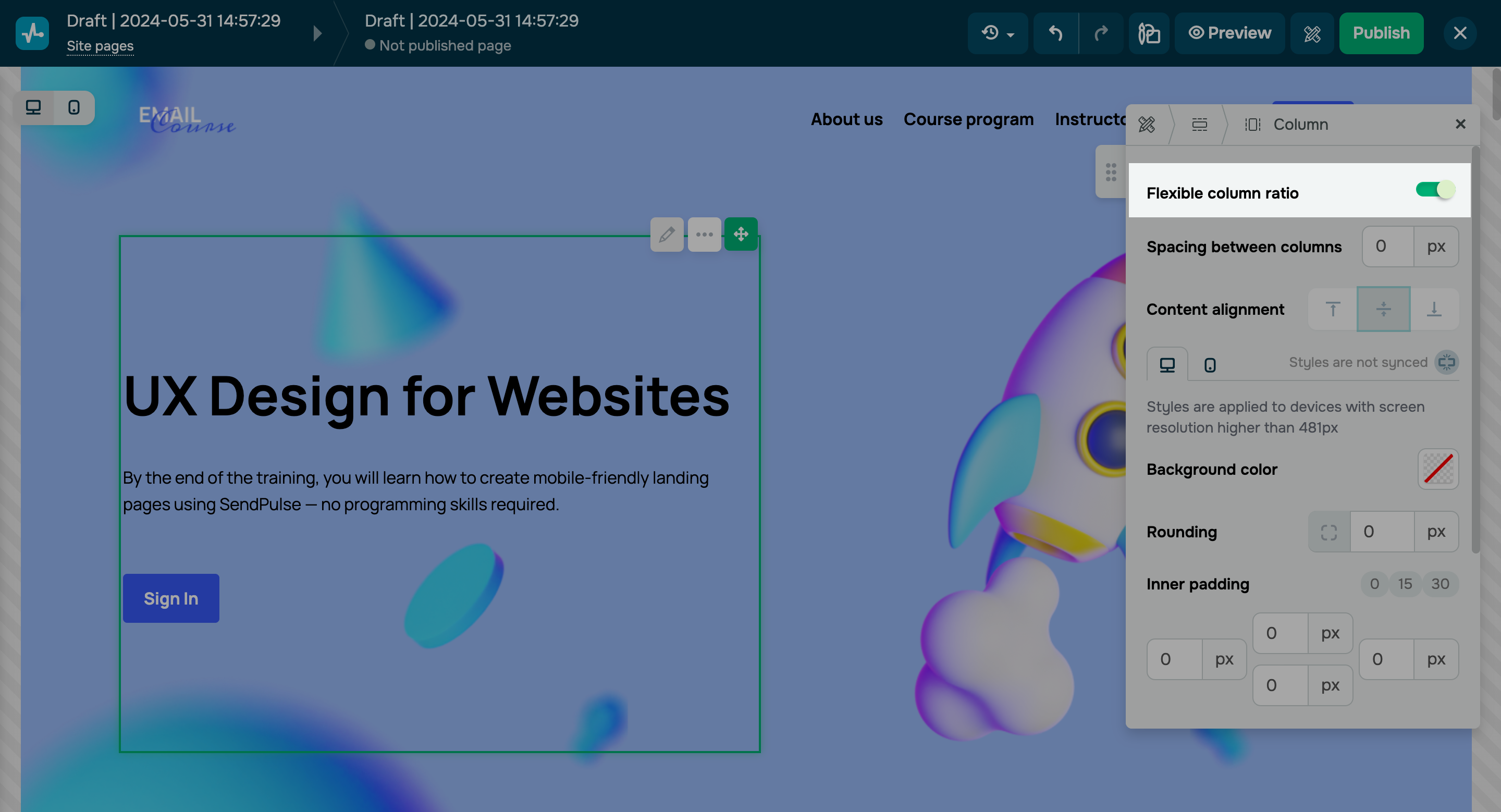
Custom column width

Enable the “Flexible column ratio” option in the column settings to customize your column widths within a single section and implement a more complex content structure for your website.

icon

If you need help with setup or have any other questions, contact our tech support team — we're in touch 24/7.

Best regards, Caleb Smith

sendpulse.com

You received this email because you are a customer of SendPulse. 

Unsubscribe

Sent via

SendPulse