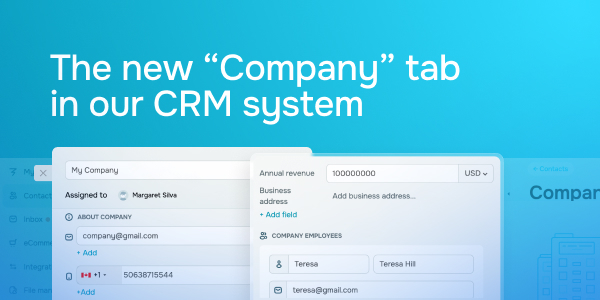
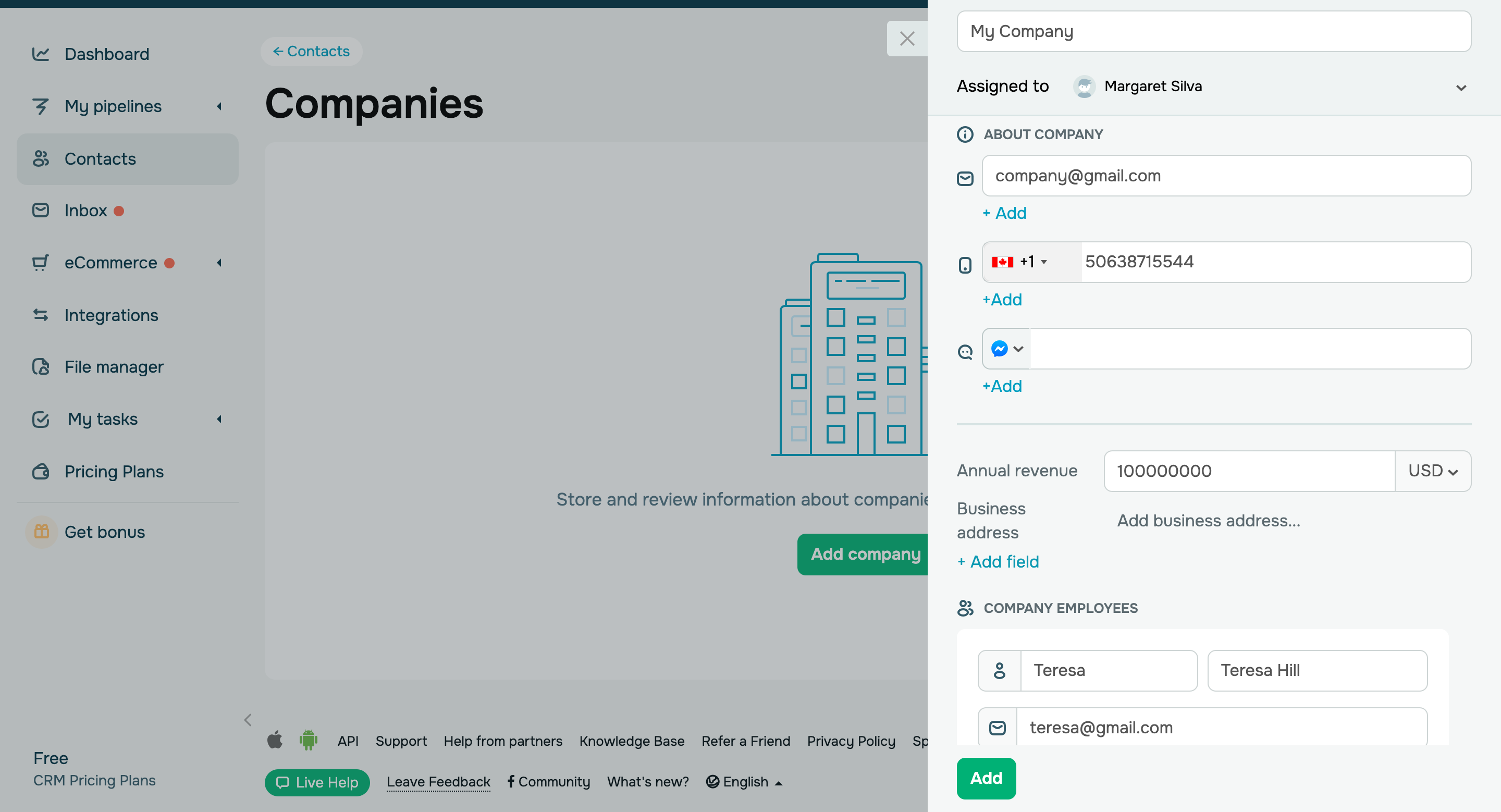
Using the "Company" tab, you can now group all contacts associated with a single organization and store detailed information about companies, including their addresses, business hours, contacts, and more. Follow these steps to create a сompany: - go to the “Contacts” tab;
- select “Companies”;
- click “Add company”;
- fill in all the fields and click "Add."
A company card typically includes a company name, contact details, company assignee, annual revenue, and employees’ contacts. If necessary, you can also upload a file and add custom fields. To view the list of all companies, go to the "Companies" tab in your CRM system. By default, you'll see company names, assignees, and creation dates. Additionally, you can display custom fields if needed. Also, you can filter the list of companies displayed on your screen by specifying your filter criteria in the menu. Learn more about how to create and manage companies in our knowledge base. |