πŸŽ“ Multilingual support and a new β€œGallery” element in our pop-up builder

Newsletter Archive
SendPulse
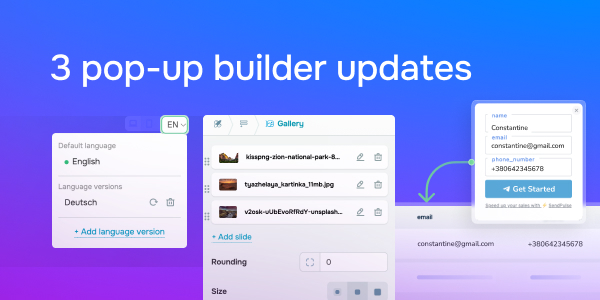
3 pop-up builder updates
Caleb Smith

Caleb Smith

Product Marketer


Β«Our pop-up builder now has so much more to offer! You can create multilingual widgets, embed galleries into your pop-ups or surveys, and seamlessly pass data from your pop-ups to chatbots.Β»

Create multilingual pop-up widgets

Create multilingual pop-up widgets

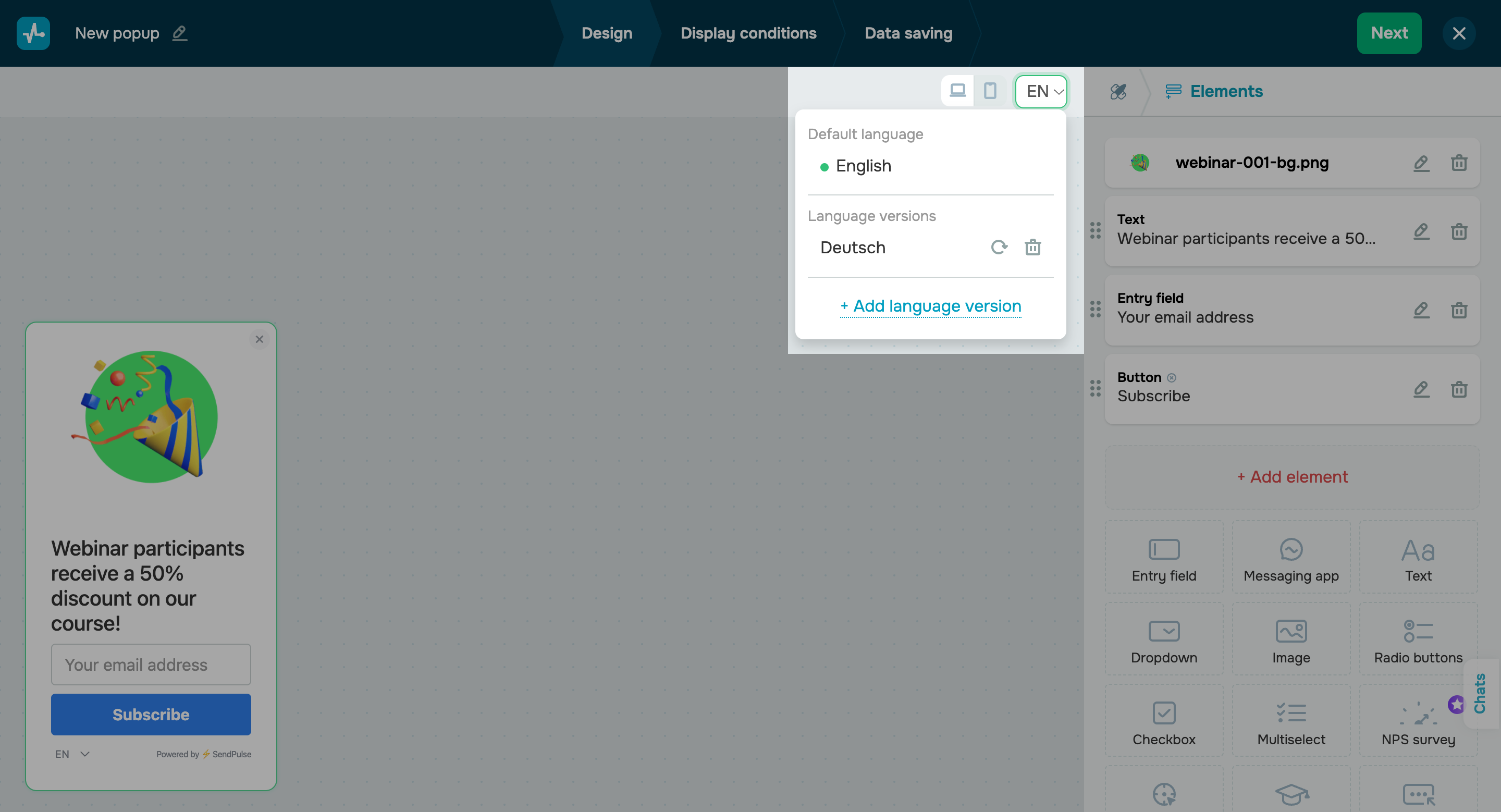
If you have an international audience, your pop-ups will convert better if they match your users’ browsing language. To save you time on creating separate widgets for each language, we’ve added multilingual support to our pop-up builder.

Specify your default language, select additional languages from the list, and our pop-up builder will automatically create a widget copy that matches your existing design and settings. All you need to do is update the links and text for your offers, placeholders, and buttons in each language version. You can easily change your default language or delete another language version by clicking the corresponding icon.Β 

The system will automatically display the relevant widget version based on the user's browser language and your default widget language. Your website visitors can also manually change the pop-up language if necessary.

Create a multilingual pop-up
Add a gallery to your pop-up

Add a gallery to your pop-up

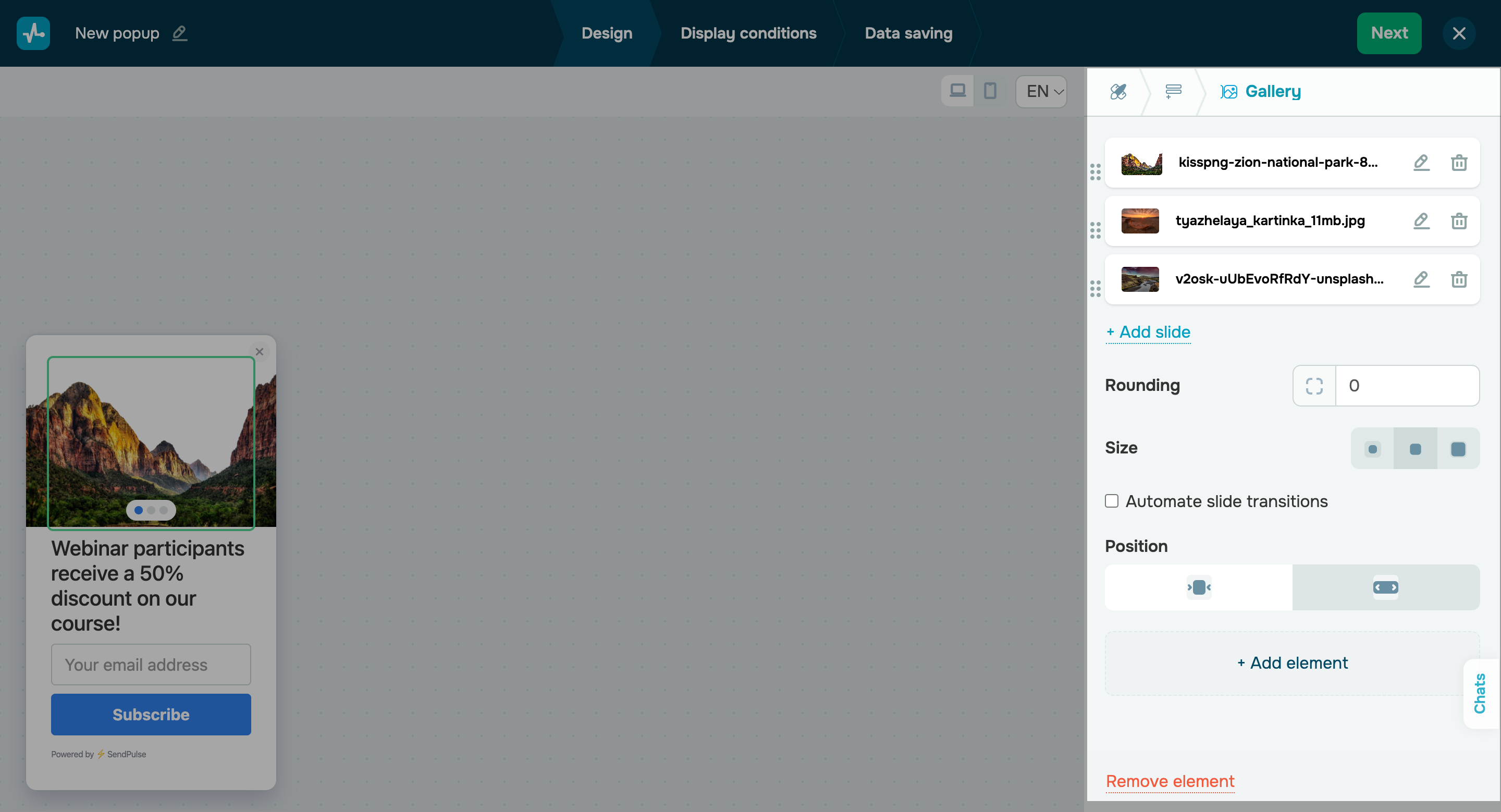
Using our pop-up builder, you can now add a gallery to your pop-up to display two to ten images as a slideshow. This feature will come in handy for showcasing several products, screenshots, or deals in a single pop-up.

There are several style customization options for your galleries:

  • rounding the corners;
  • size: S, M, or L;
  • position: center align or fill the entire pop-up;

You can also enable or disable automated slide transitions.

Add a gallery

Pass pop-up form data to chatbots

From now on, when a user subscribes to your chatbot through a pop-up, all the information they entered into your form will be automatically saved to chatbot audience variables. You can then view them in the "Audience" tab.Β 

Here’s how it works for your website visitors:

  • a user enter their email address and phone number to the corresponding pop-ups fields;Β Β 
  • they select their preferred messaging platform and click the corresponding button;Β 
  • they get automatically transferred to that messaging platform and subscribed to your chatbot;Β 
  • your chatbot’s welcome message launches.Β 

After this, the system automatically creates a new contact in your chatbot audience with the specified email address and phone number. It's the perfect time to set up automated omnichannel communications with your customers using email campaigns, SMS, and chatbots!

Give it a try
icon

If you need help with setup or have any other questions, contact our tech support team β€” we're in touch 24/7.

Best regards, Caleb Smith

sendpulse.com

You received this email because you are a customer of SendPulse.Β 

Unsubscribe

Sent via

SendPulse