đź”” Improved Google Sheets integration and GIF animations in chatbot flows

Newsletter Archive
SendPulse
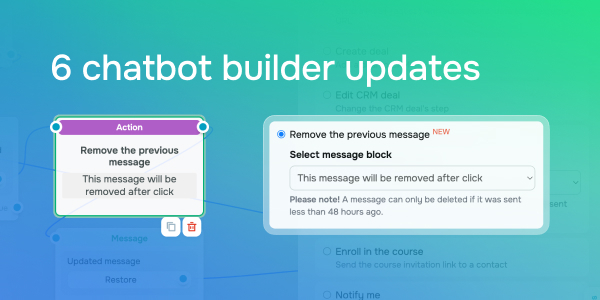
6 chatbot builder updates
Caleb Smith

Caleb Smith

Product Marketer


“Today, we’re diving into our latest chatbot builder updates. We'll walk you through our improved Google Sheets integration, public previews of your chatbot flows, deleting previous messages in Telegram chatbots, templates with 'Flow forms' buttons for WhatsApp, and more.”

Improved integration with Google Sheets

Improved integration with Google Sheets

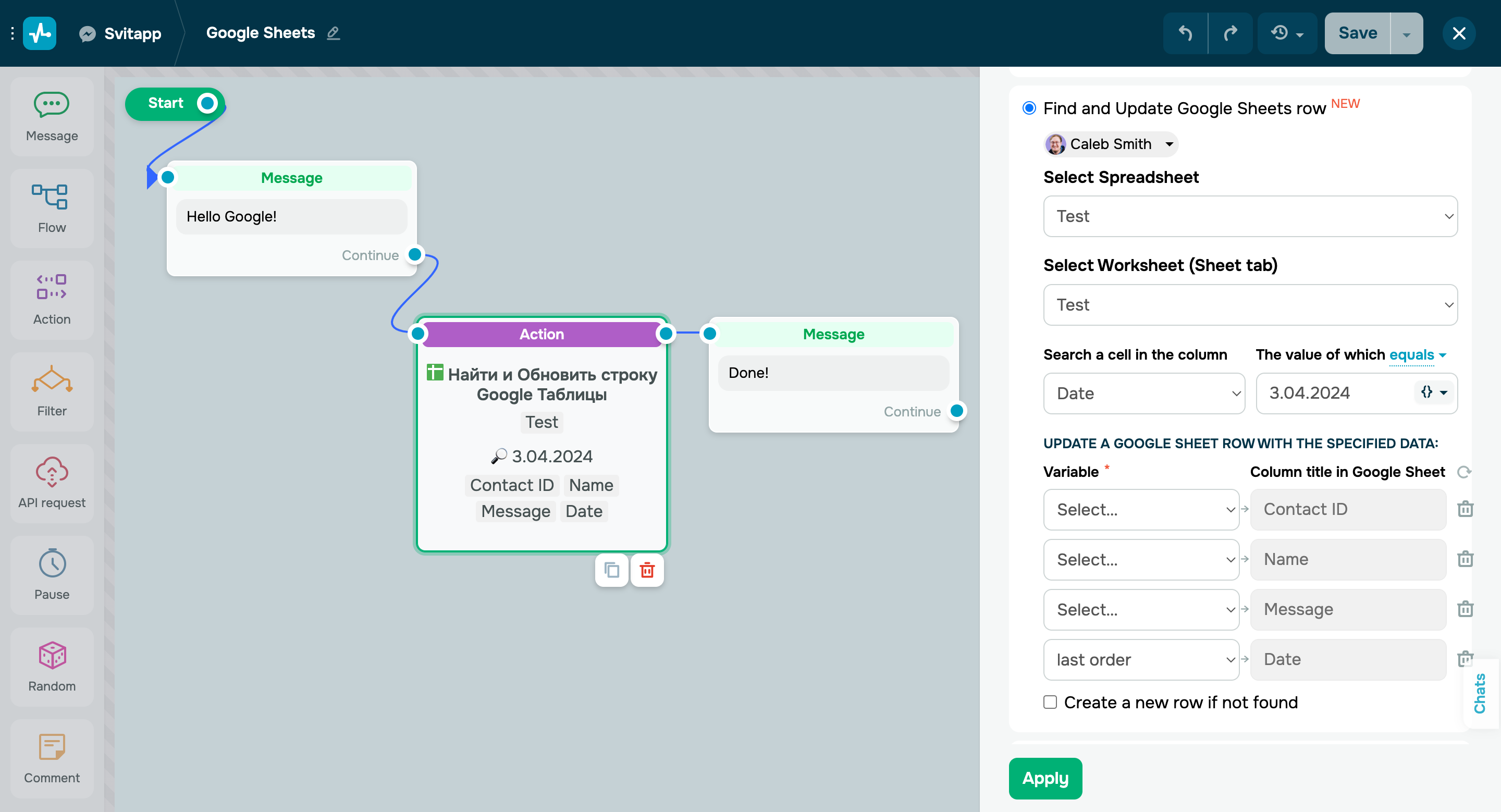
Thanks to our enhanced Google Sheets integration, you can now transfer subscriber data from chatbots to Google Sheets and vice versa whenever users interact with your chatbot. 

Previously, you could automatically add new rows with contacts’ data to Google Sheets when users progressed through your flow elements, find and update data in selected rows, and save data from Google Sheets rows to chatbot variables. 

We’ve recently added new options. You can now:

  • Set search criteria for Google Sheets columns.
  • Import user data into specific columns.
  • Save data from selected columns to chatbot variables when importing your Facebook Messenger, WhatsApp, and Telegram subscribers. If the data in a cell are separated by commas, they will be saved as separate variables.
  • Use the “contains”, “equals”, “starts with” and other parameters when searching by value in Google Sheets and retrieving data from rows. For previously connected integrations the "contains" option is applied by default.
Integrate Google Sheets

Send GIFs as animations to Telegram bot subscribers

You can now upload GIF files to your Telegram flows and show them as animations. 

We’ve also increased the video file size limit from 20 MB to 50 MB.

Add GIFs as animations
Delete previous messages from Telegram chatbot flows

Delete previous messages from Telegram chatbot flows

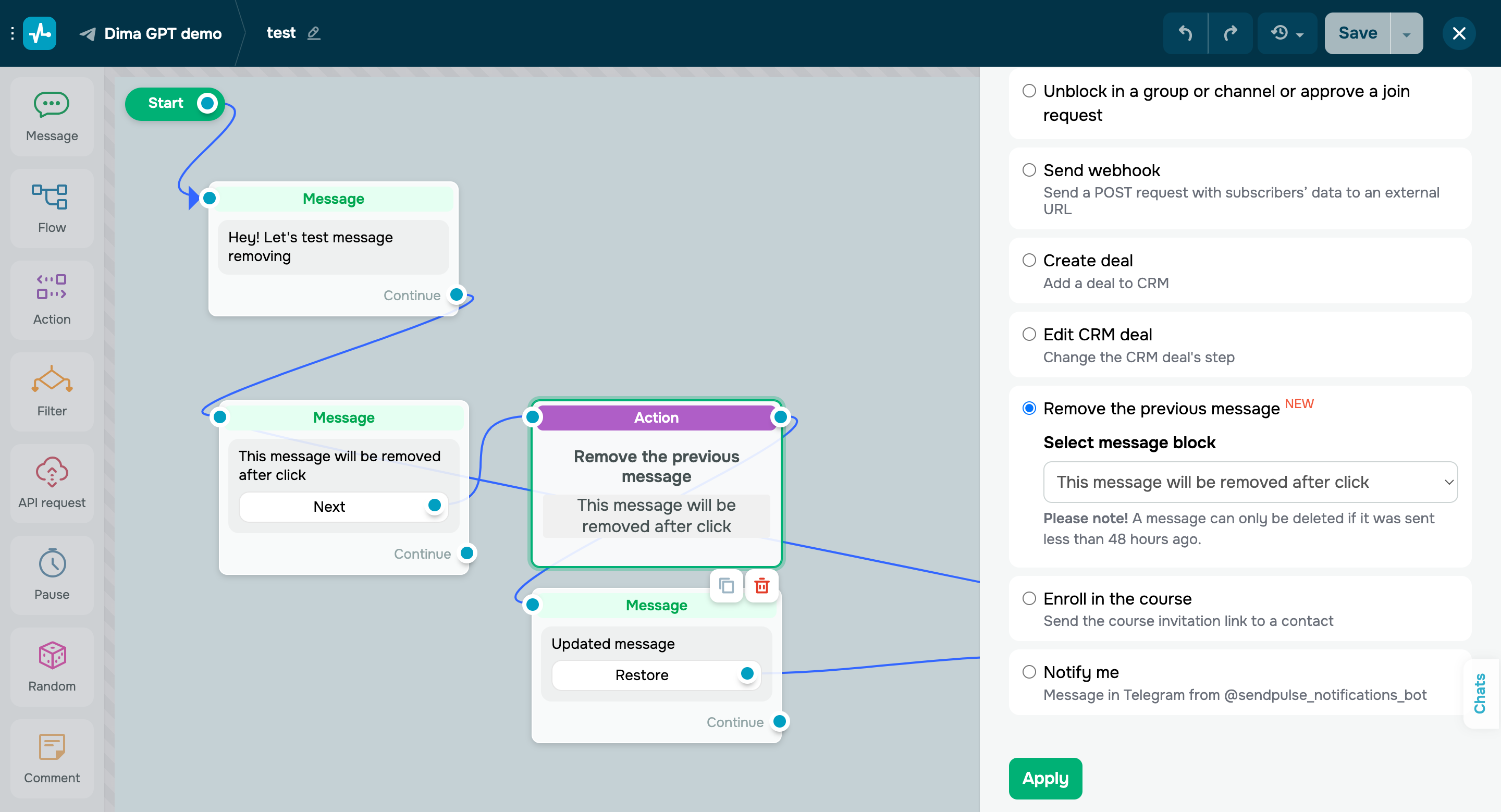
With the “Action” element, you can perform various actions with the subscribers' data when they progress through your chatbot flow. The list of available actions has recently expanded. You can now delete your sent messages from a subscriber's chat with your bot to avoid cluttering your conversations with outdated information or prevent users from clicking buttons in old messages.

Follow these steps to delete a previous message:

  • Drag the “Action” element onto your workspace right after the element you want to delete.
  • Select the “Remove the previous message” action.
  • Select the message block.
  • Click “Apply.”

Important note: you can only remove messages sent within the last 48 hours.

Set up your "Action" element
Public preview of your chatbot flow structure

Public preview of your chatbot flow structure

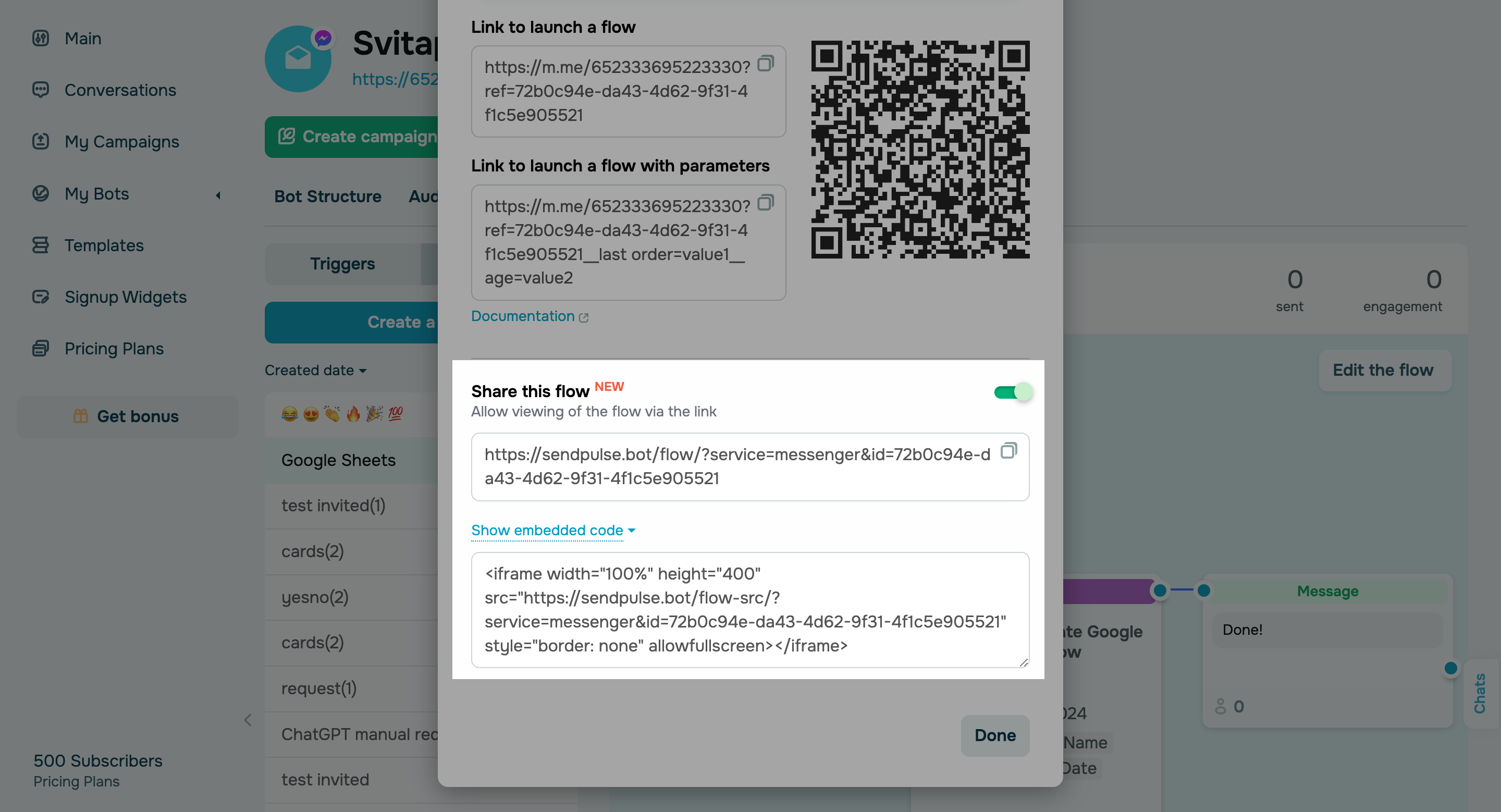
You can now enable a public preview mode for your chatbot flows to allow your managers, clients, or co-workers to view them via a link without logging in to their SendPuse accounts. 

Follow these steps to share your flow with other users:

— Select your flow and click the three dots next to its name.

— Select the “Link to launch a flow” option.  

—  Turn on the “Share this flow” toggle and copy the auto-generated code. 

Also, you can now embed a bot flow preview into your website via code. This option is available across all messaging platforms and pricing plans.

Share your flow

Voice messages in the “User input” element in Facebook Messenger, Instagram, and WhatsApp chatbots

The option to receive voice messages from subscribers and save user responses to Facebook Messenger, Instagram, and WhatsApp chatbot variables used to be limited. Now, if you select the “Image, video, or document” validation type for your chatbot, your users can interact with you through voice messages to streamline communication and data sharing.

Try it out
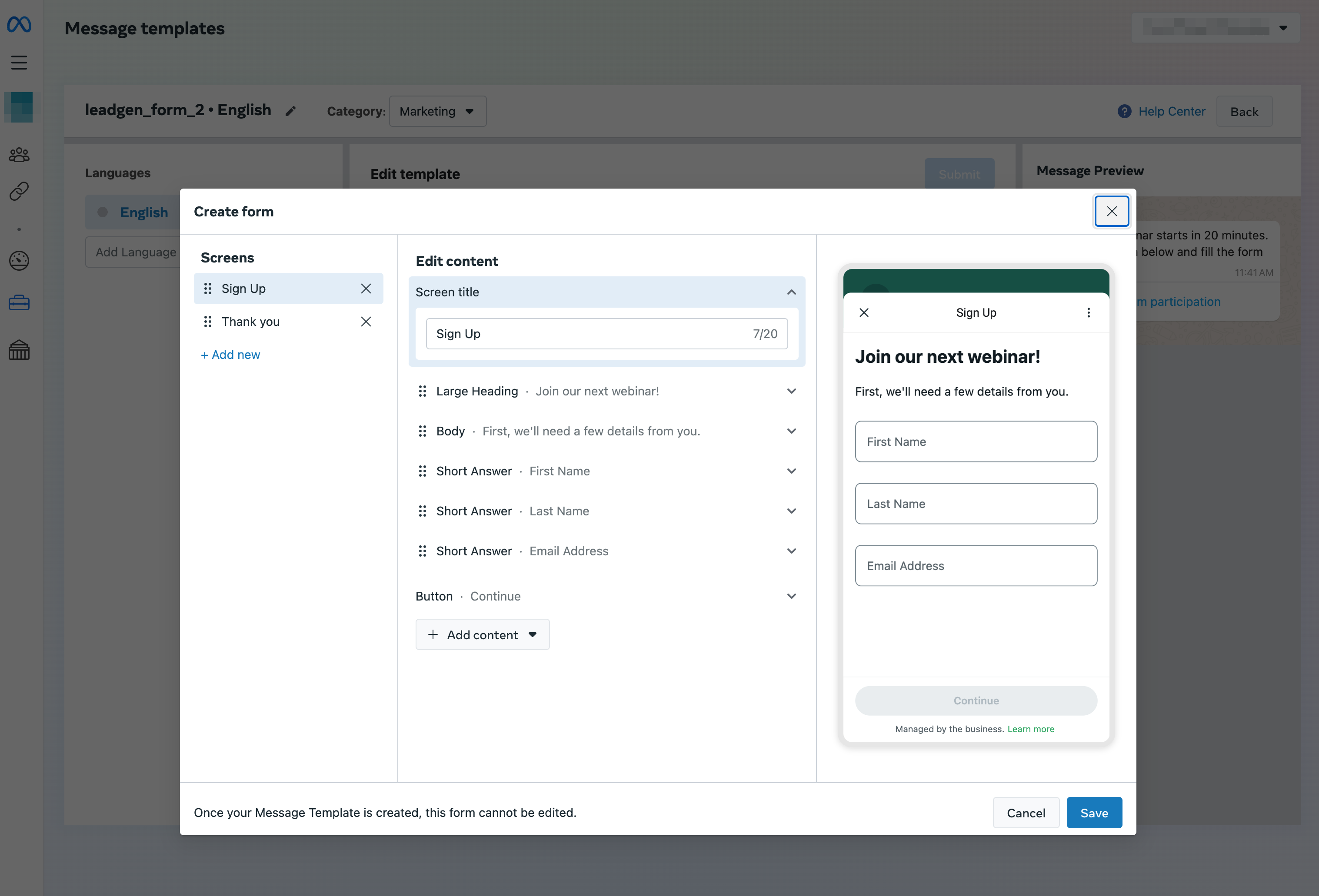
Template messages with “Flow forms” buttons in WhatsApp

Template messages with “Flow forms” buttons in WhatsApp

With template messages with “Flow forms” buttons, you can now create forms to collect user data without having to leave the app. This option is only available for campaigns, pre-approved through WhatsApp Manager.

Template messages with such buttons can be used to:

  • send bulk WhatsApp campaigns using templates; 
  • send single template messages to your subscribers; 
  • send template messages through API;
  • continue your chatbot flow after users fill out your form; 
  • show the collected form data in your ongoing conversations with subscribers.
Try out the new template
icon

If you need help with setup or have any other questions, contact our tech support team — we're in touch 24/7.

Best regards, Caleb Smith

sendpulse.com

You received this email because you are a customer of SendPulse. 

Unsubscribe

Sent via

SendPulse