đź”” 4 general chatbot builder updates

Newsletter Archive
SendPulse
Major chatbot builder update | part 1
Caleb Smith

Caleb Smith

Product Marketer


“SendPulse’s chatbot builder has become even more comprehensive! You can now select several chatbot builder elements to move or mass delete them, and take advantage of our newest Telegram chatbot features!”

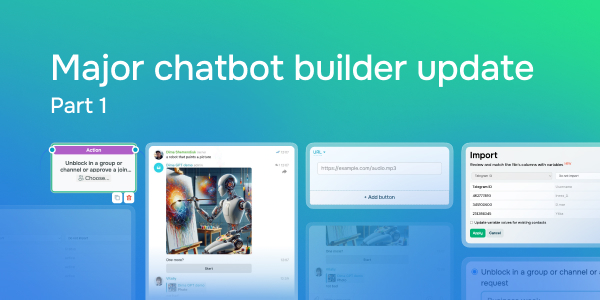
New chatbot builder features

New chatbot builder features

Just like before, you can use our chatbot builder to create automated chatbot flows launched by triggers. And thanks to our latest update, you can perform certain actions more quickly and conveniently.

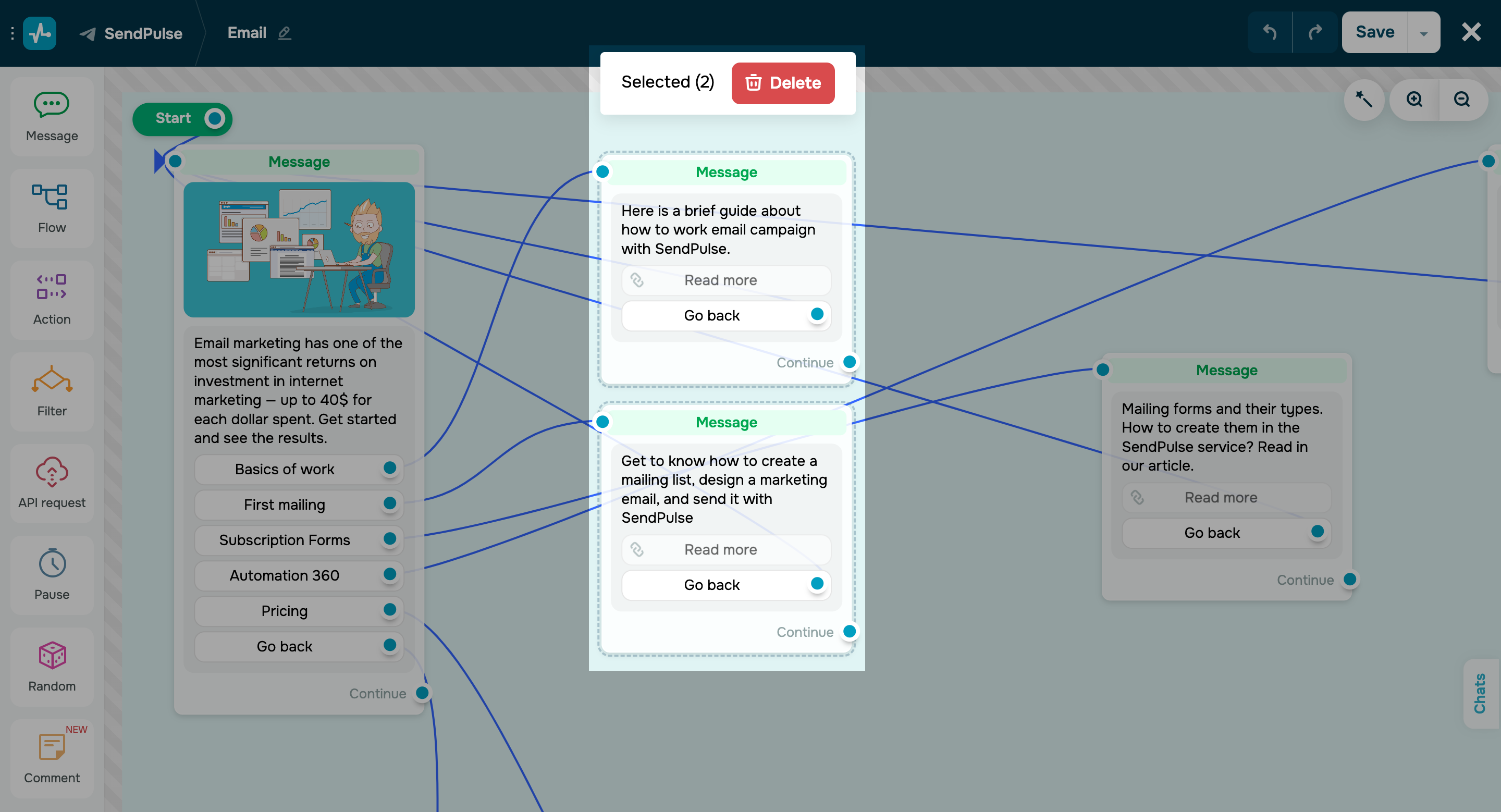
  • Select several chatbot elements to move or mass delete them. All you need to do is press “Shift” on your keyboard and select your elements. Then, delete them or move them within your working field. 
  • Add audio and video messages via a URL. To send media files with personalized URLs or those that exceed our service’s file size limits, simply attach links to them
Try new features
Limit AI bot triggering for one contact

Limit AI bot triggering for one contact

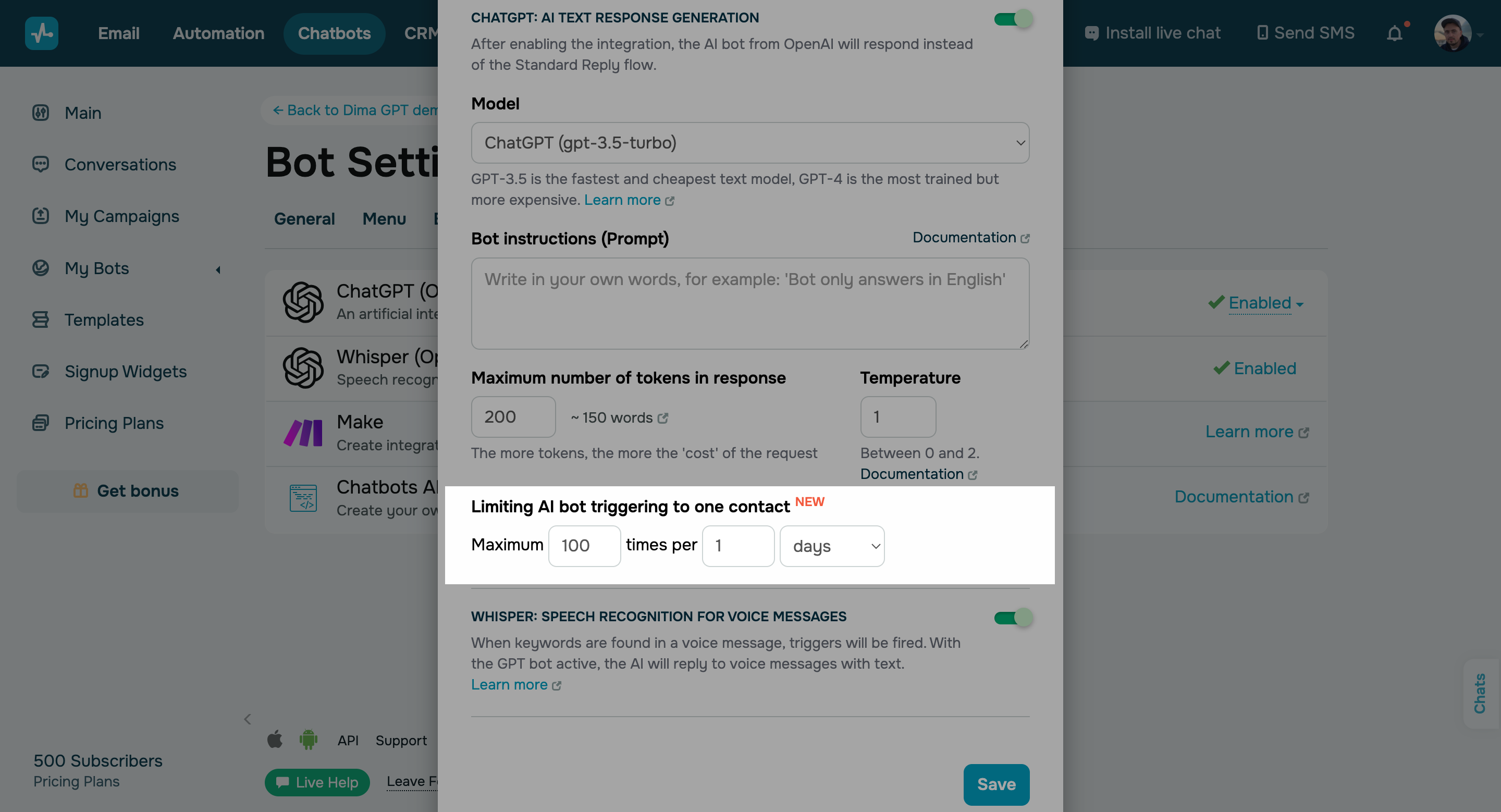
If you want to restrict the number of paid OpenAI requests for individual chatbot subscribers, you can now limit how often a contact can trigger the bot within a specific timeframe. 

Here’s how you can set the limits:

  • Go to the “Integrations” tab of your bot settings.
  • Click “Edit” next to the “ChatGPT (OpenAI)” integration.
  • Go to the “Limit AI bot triggering for one contact” section, and set your maximum number of triggers within a specific timeframe.
Limit AI bot triggering
New chatbot features for Telegram groups and channels

New chatbot features for Telegram groups and channels

We’ve recently rolled out three helpful chatbot updates:

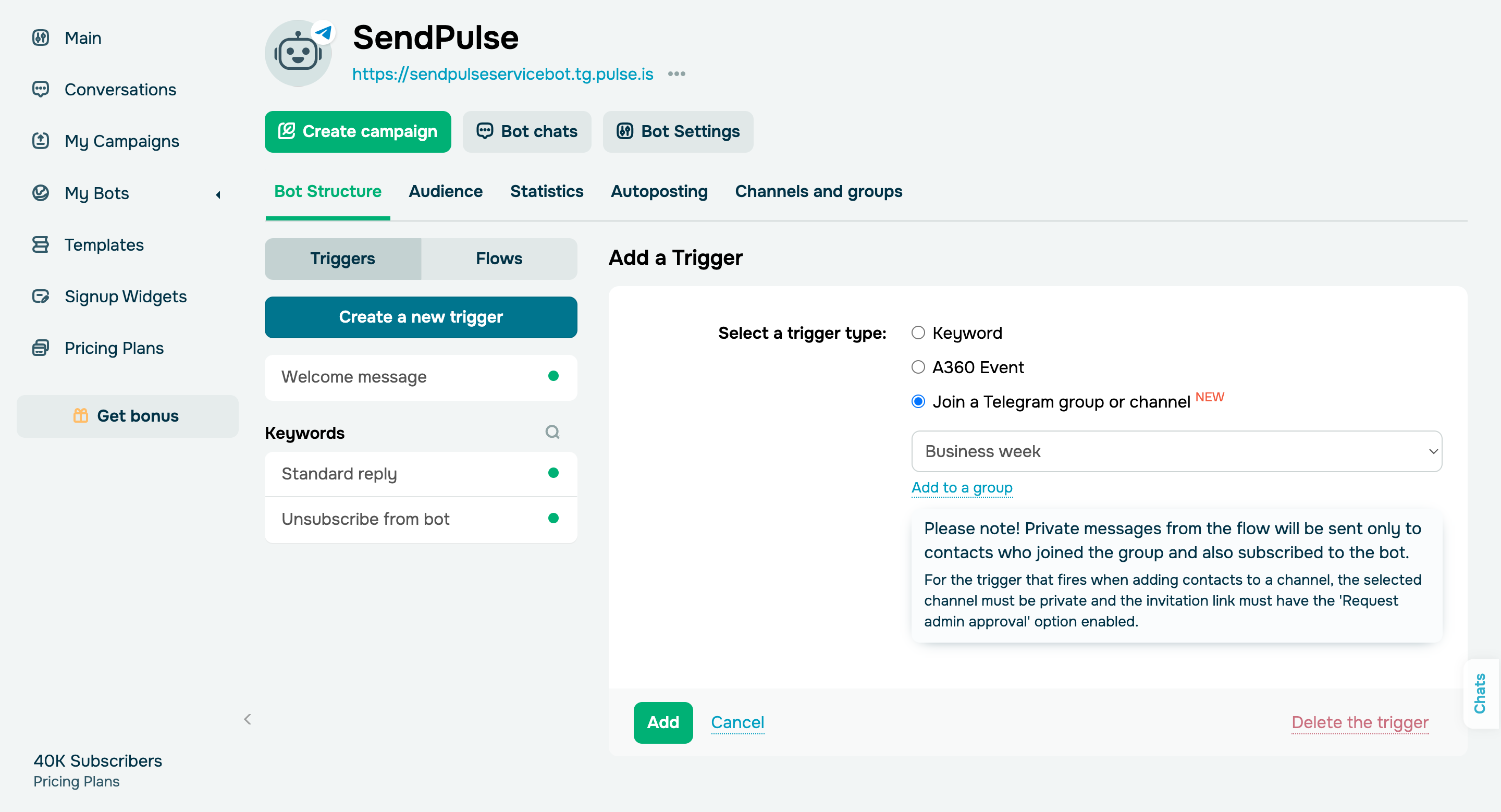
  • The new “Join a Telegram group or channel” trigger. When this trigger is fired, your bot will send private messages to your subscribers as per your flow. For users who are not subscribed to your chatbot, other actions will be taken, for instance, “Notify me” or “Block in a group or channel,” etc.

  • User input elements in group chats. After your message with the user input field is sent to the group, your chatbot will process the next message and continue your flow. Keep in mind that quick replies are not available for group chats, and the buttons are only available for your chatbot subscribers. 

  • Approving join requests through the “Action” element. To accept a user’s join request, choose the “Unblock in a group or channel or approve a join request” action in your flow and select your channel from the list. This option will come in handy for private Telegram channels. 
Try our new Telegram chatbot features
Match columns when transferring Telegram bot subscribers from other services to SendPulse

Match columns when transferring Telegram bot subscribers from other services to SendPulse

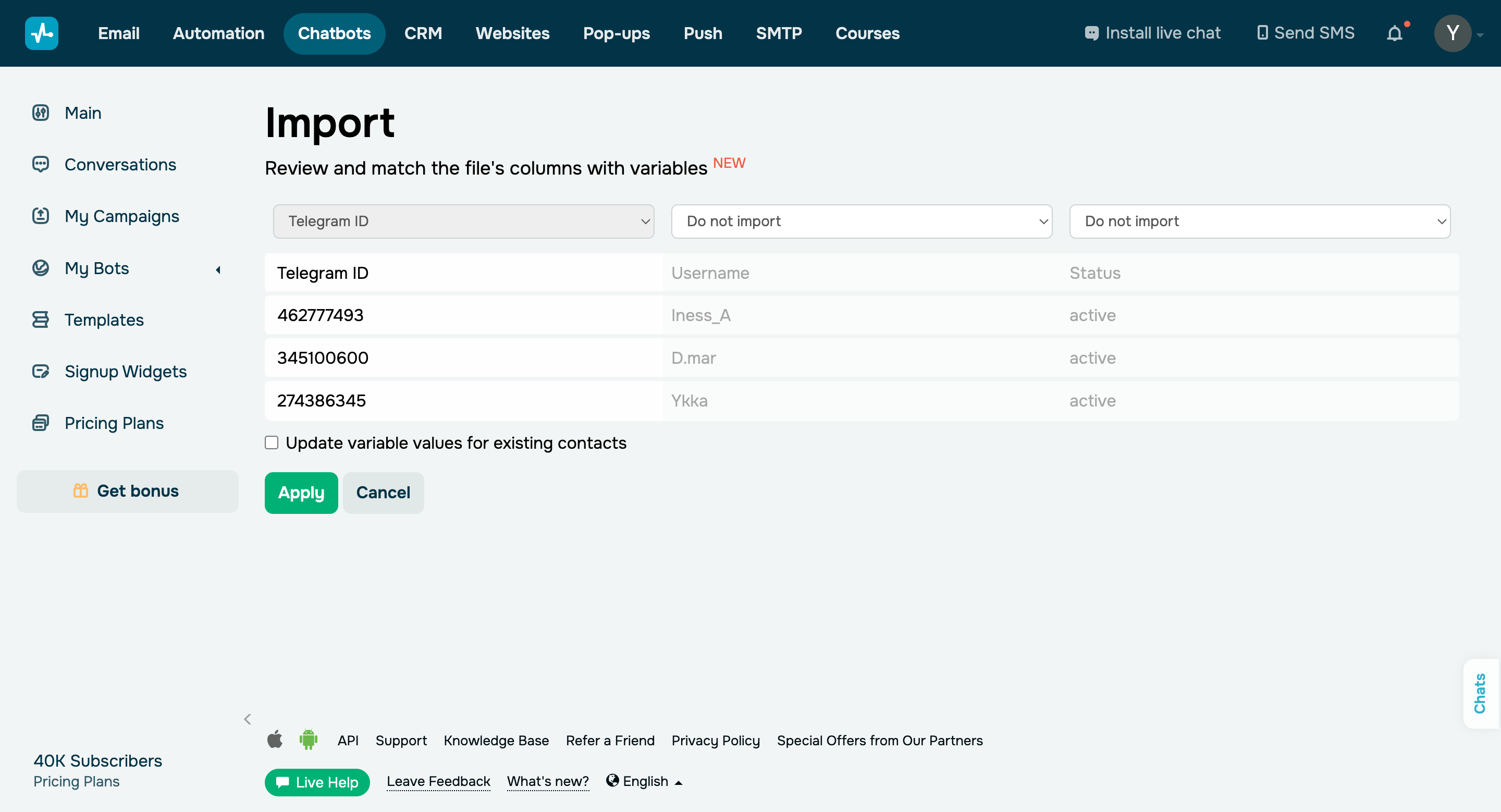
You can now preview your CSV file before starting your contact import process to match your file columns with existing variables. 

Here’s how you can import your subscribers:

  • Go to your “Audience” tab in your connected Telegram bot and click “Import”.
  • Select the file with your subscribers and click “Import”.
  • Match your columns with existing variables and update variable values for existing contacts if necessary. 
Import bot subscribers
icon

If you need help with setup or have any other questions, contact our tech support team — we're in touch 24/7.

Best regards, Caleb Smith

sendpulse.com

You received this email because you are a customer of SendPulse. 

Unsubscribe

Sent via

SendPulse