đź”” Generating payment links in your CRM system

Newsletter Archive
SendPulse
Generate payment links in CRM
Caleb Smith

Caleb Smith

Product Marketer


”We’re continually improving our CRM system to make it easier for you to automate your sales efforts and customer communications. Read on to learn about our three helpful updates.”

Generate payment links in CRM

Generate payment links in CRM

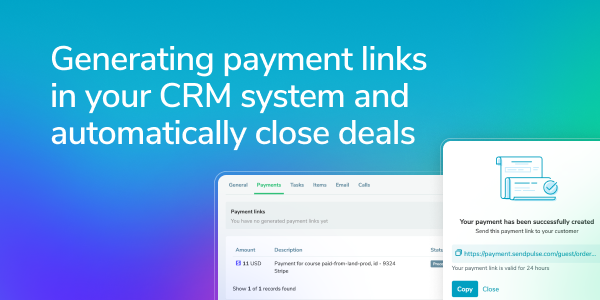
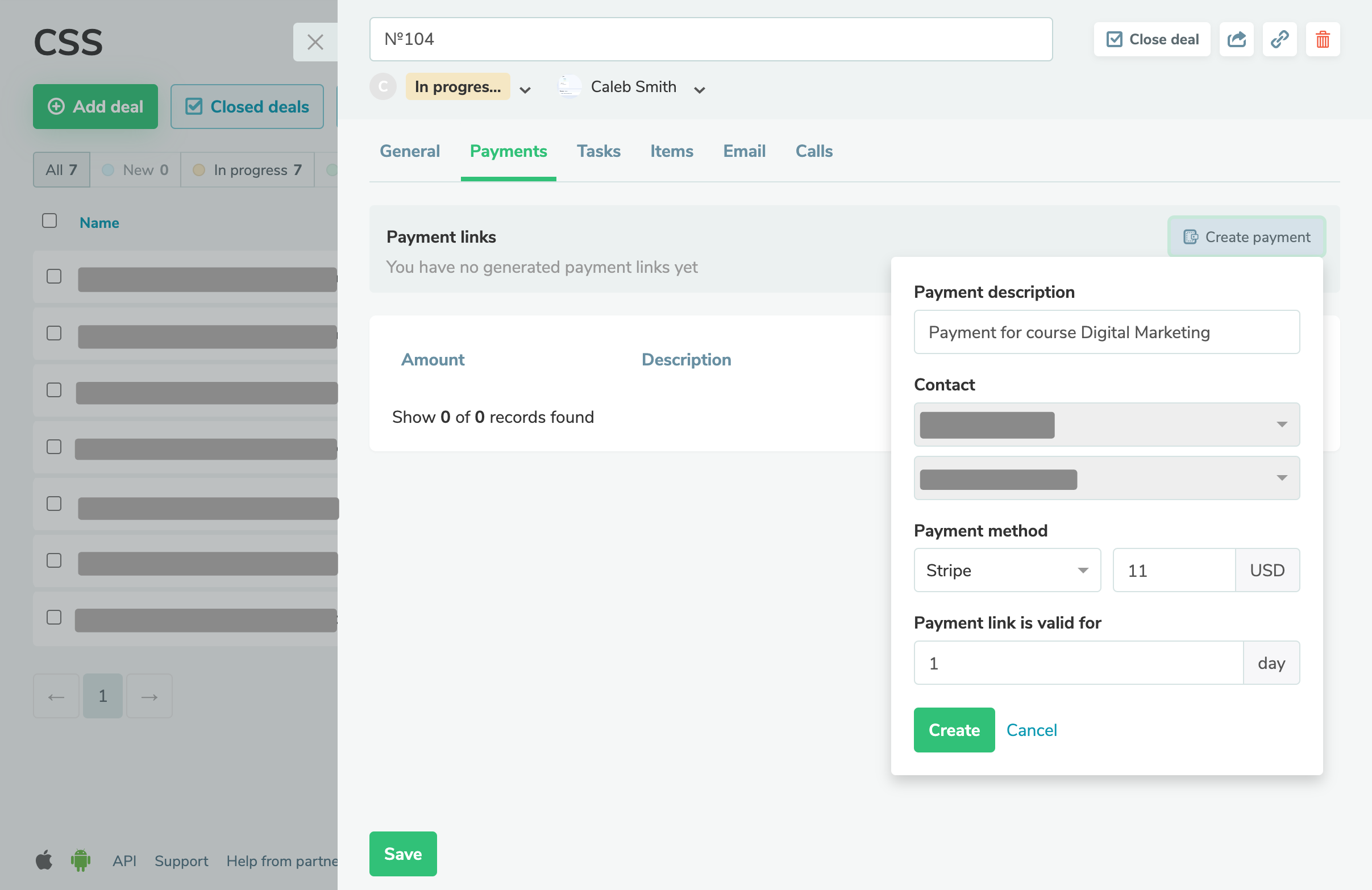
You can now create payment links right in your CRM system and share them with your customers. This will make their payment process more comfortable, and your accountants will have a convenient reporting tool.

A payment link allows you to receive an online payment for a specific order via a created invoice. You can share it using a chatbot, email, or live chat.

Once a user clicks your link, they will be able to pay for their order.

You can create a payment link in your:

  • contact cards;
  • deals.

Each deal is associated with a single payment link, while each contact can be linked to multiple payment links.

Learn more about how to create, set up, and manage your payment links in our knowledge base.

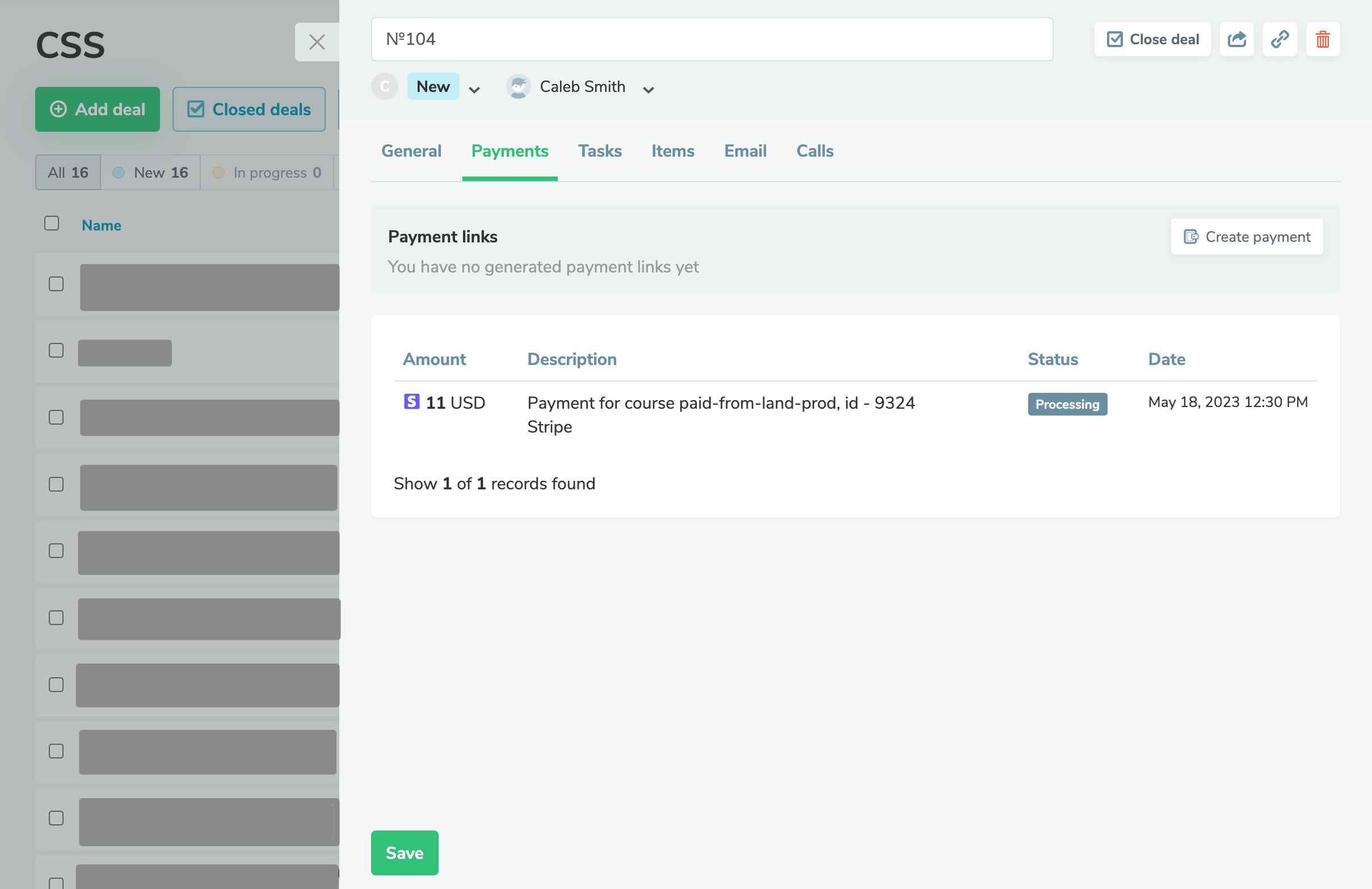
Payment information

You can view payment information to thoroughly analyze each transaction.

The following data points are now available:

  • payment method, amount, and currency;
  • payment description;
  • payment status;
  • payment date and time.

Learn more about payment statuses in our knowledge base.

Generate your payment link
Launch flows when adding new contacts or assigning tags

Launch flows when adding new contacts or assigning tags

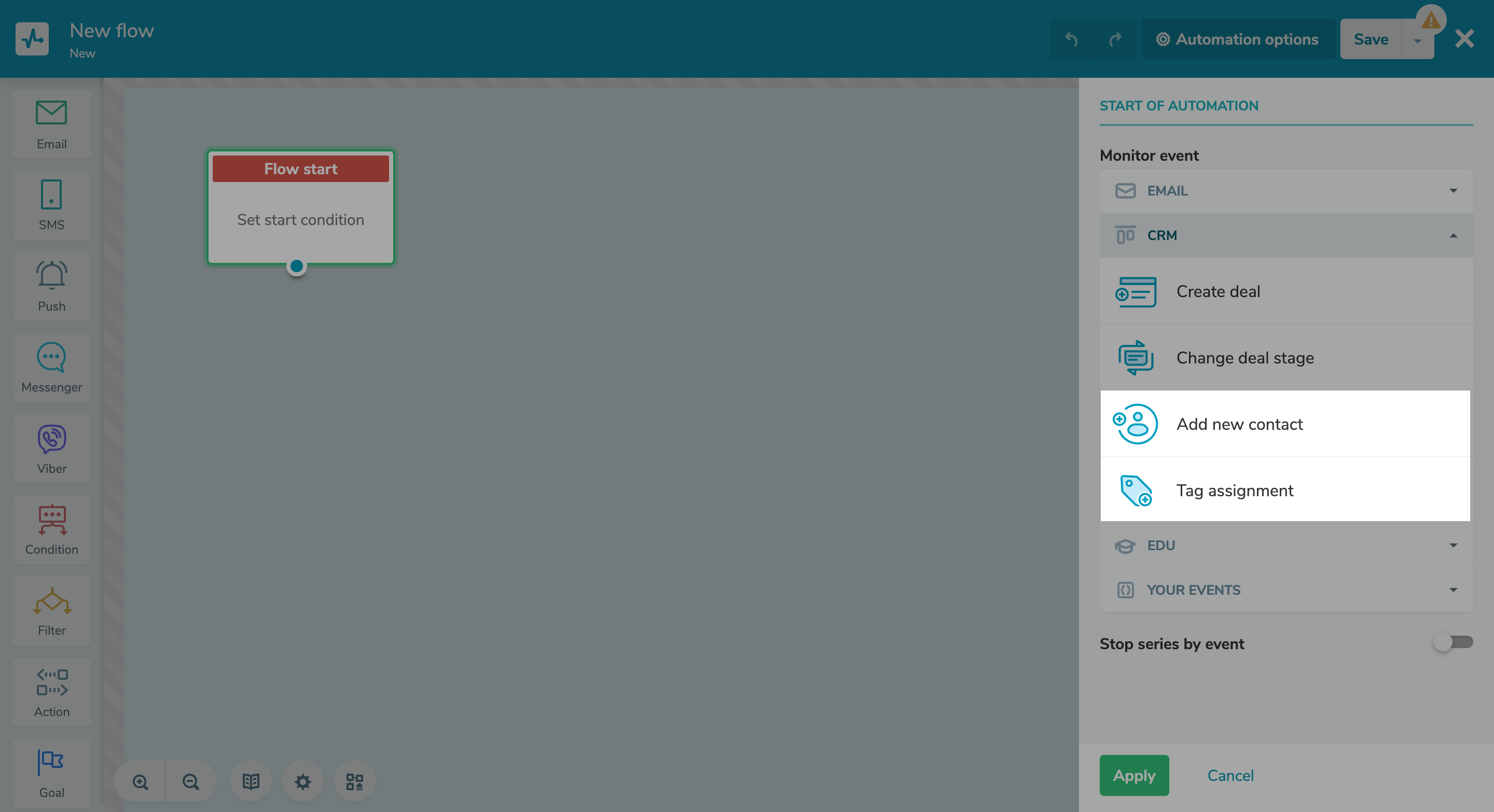
We’ve enhanced the integration between our CRM system and Automation 360 flows to help you effortlessly engage with your contacts.

You can now send automated flows using two new launch triggers available in our CRM:

  • Add new contact;
  • Tag assignment.

Within the “Add new contact” trigger, you can enable or disable the "Send to all contact’s email addresses or phone numbers” option and stop the flow by turning on the “Stop series by event” toggle.

For the “Tag assignment” trigger, you can select a specific tag and set up an event that will stop the flow.

Try out new triggers
Close deals and complete tasks automatically

Custom web push notifications for course students

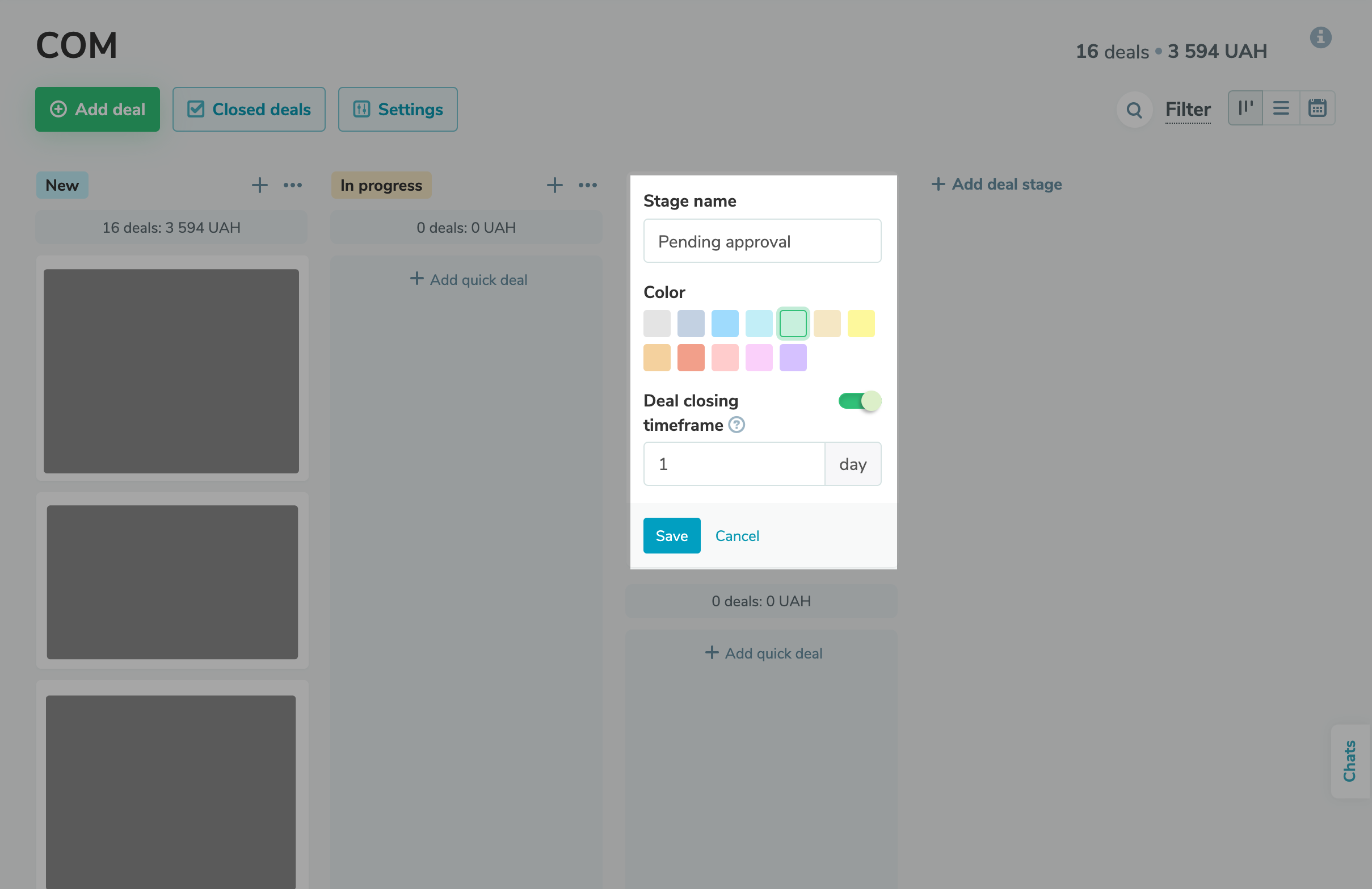
We’ve added the “Deal closing timeframe” and “Task completion timeframe” options to our flow status settings and dashboard. By enabling them, you can automatically specify a completion or closing date for each deal or task.

Your automated flow will be triggered whenever you move a deal or task to a new stage. If you manually edit the completion or closing dates of deals or tasks that have already reached certain stages, your manual entries will override them.

Set up completion and closing timeframes
icon

If you need help with setup or have any other questions, contact our tech support team — we're in touch 24/7.

Best regards, Caleb Smith

sendpulse.com

You received this email because you are a customer of SendPulse. 

Unsubscribe

Sent via

SendPulse