🤖 Improving your website copy with AI and the updated “Reviews” widget

Newsletter Archive
SendPulse
Improving your website copy with AI and the updated “Reviews” widget
Caleb Smith

Caleb Smith

Product Marketer


“Take the lead by leveraging AI to improve your website copy! Waste no time and try out our new website builder features, including text refinement, tone adjustment, and translation — all powered by ChatGPT. Also, make sure to test our new "Up" button and "Reviews" widget to attract new students to your online course.”

ChatGPT integration in our website builder

ChatGPT integration in our website builder

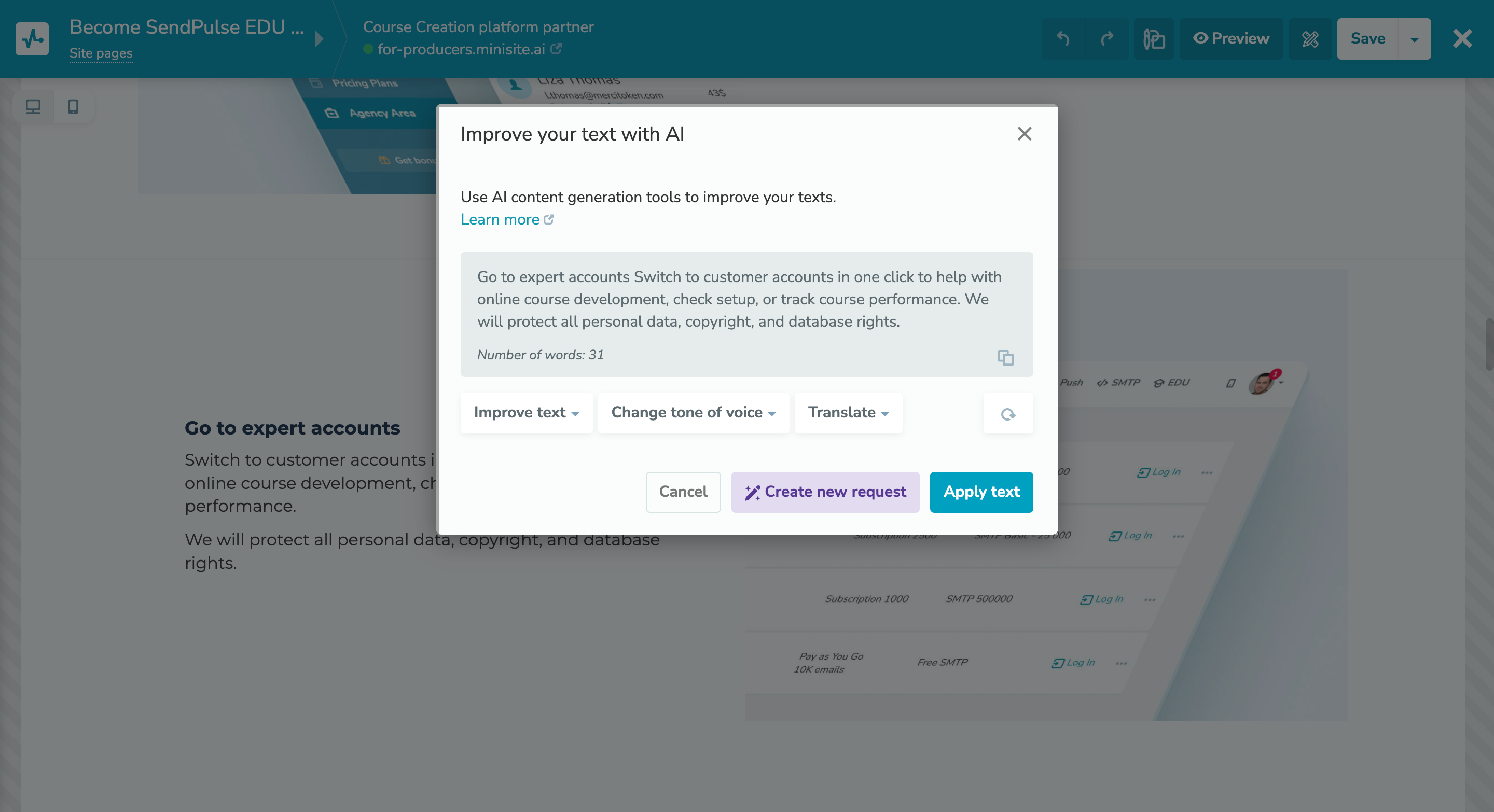
In our updated website builder, you can now leverage artificial intelligence to enhance your text content. To do this, click the text you want to modify and select “Use AI” on the editing panel.

By using AI, you can:

  • fix errors;
  • add a touch of creativity;
  • shorten, simplify, or expand your text;
  • adjust the tone;
  • translate.

Currently, ten languages are available for translation: English, Spanish, Portuguese, Turkish, French, German, Italian, Ukrainian, Polish, and Russian. But rest assured, the list will keep growing.

30 ChatGPT requests are available for free, regardless of your pricing plan. To keep using this option, integrate with ChatGPT in your account settings.

Enhance your website copy
The “Up” button on websites

The “Up” button on websites

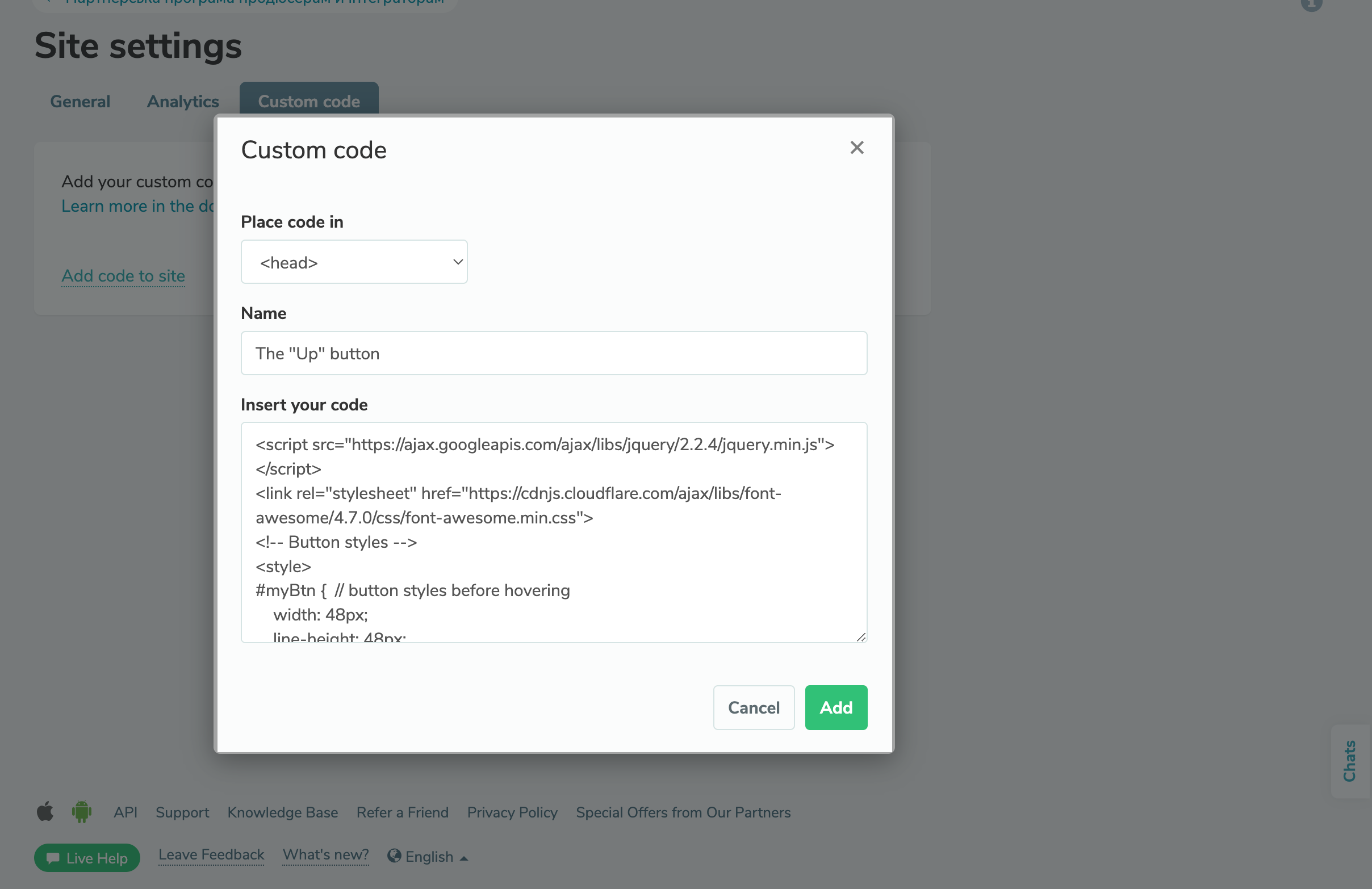
The "Up" button enhances your website navigation, allowing visitors to swiftly go back to the top of a page from anywhere on it.

Learn more about how to add the “Up” button to your website in our knowledge base.

Add the "Up" button
The “Reviews” widget for online course websites

The “Reviews” widget for online course websites

You can now add a student review widget to your website to tackle sales objections and convince potential students to enroll in your online course.

You can only add your widget to a website linked to your online course. To create an online course website with a unique design, go to your course website settings, create a new page, and add the “Review” widget.

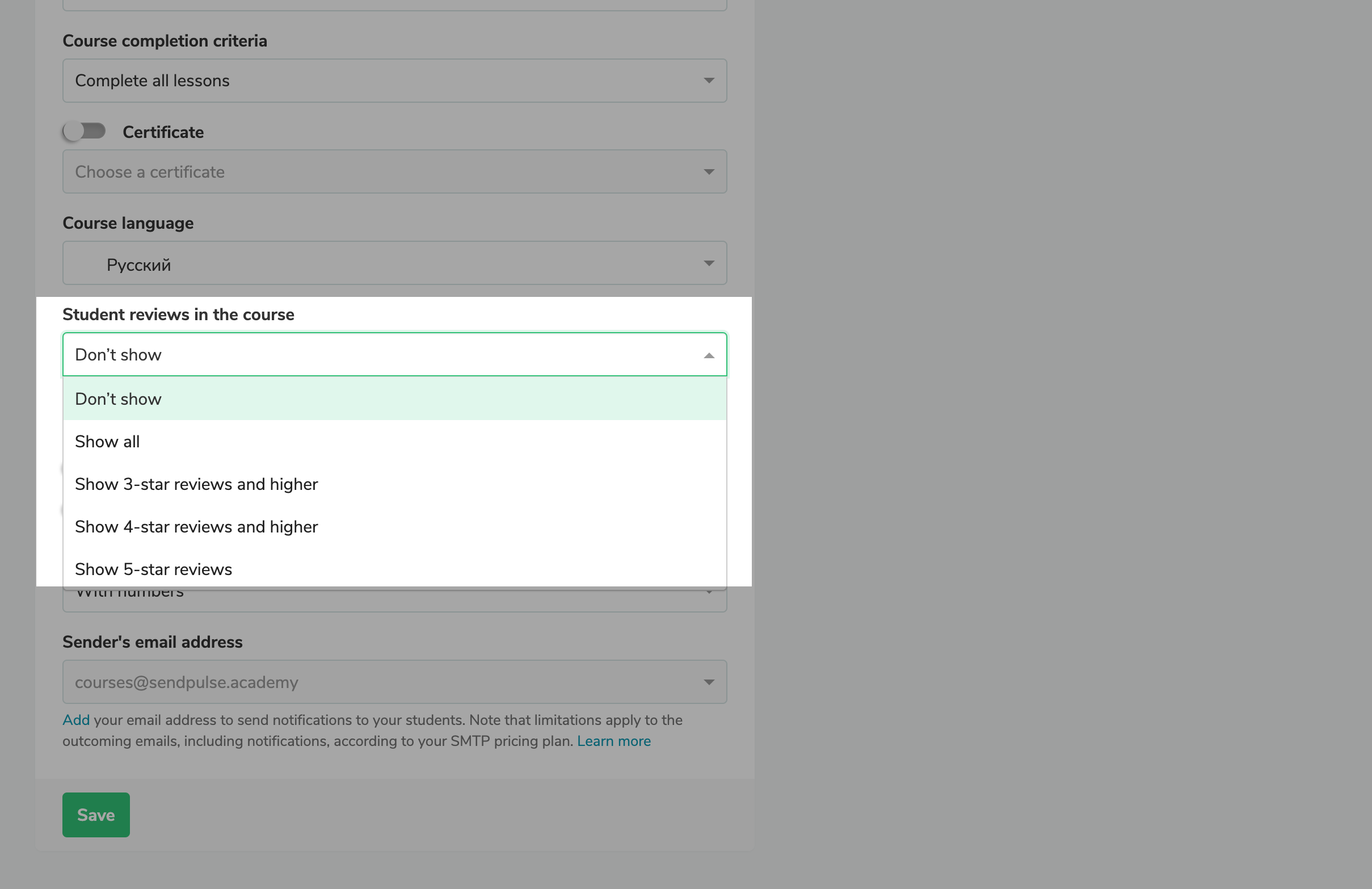
To display student reviews in the widget, go to your course settings and choose which types of reviews you'd like to display — all of them or just the 3, 4, or 5-star reviews. Then, save the changes.

Display student reviews

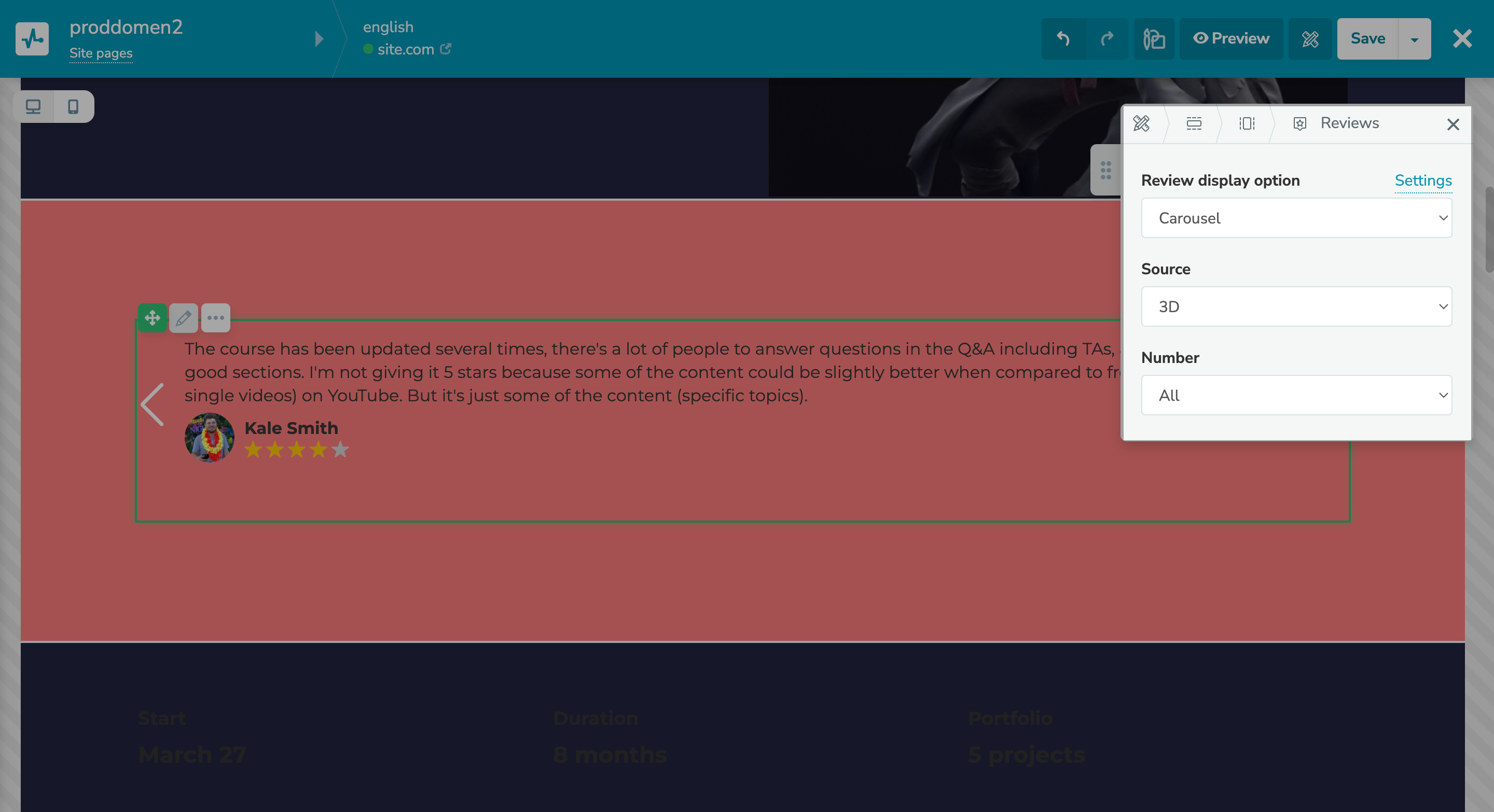
You can choose the course for which you want to showcase your reviews and their number, as well as display them as a carousel or a grid. What’s more, you can change your review style, margin, background, etc.

Customize your "Review" widget
icon

If you need help with setup or have any other questions, contact our tech support team — we're in touch 24/7.

Best regards, Caleb Smith

sendpulse.com

You received this email because you are a customer of SendPulse. 

Unsubscribe

Sent via

SendPulse