πŸ’¬ Live chat buttons, quick replies, and UTM tag transfer

Newsletter Archive
SendPulse
Live chat buttons, quick replies, and UTM tag transfer
Caleb Smith

Caleb Smith

Product Marketer


β€œLet’s start this week with some news! You can now diversify interactions with customers in your live chat using buttons and quick replies and track your button click-throughs.

Also, you can improve user segmentation and analysis of your marketing activities by automatically transferring UTM tags for live chat contacts.”

Live chat

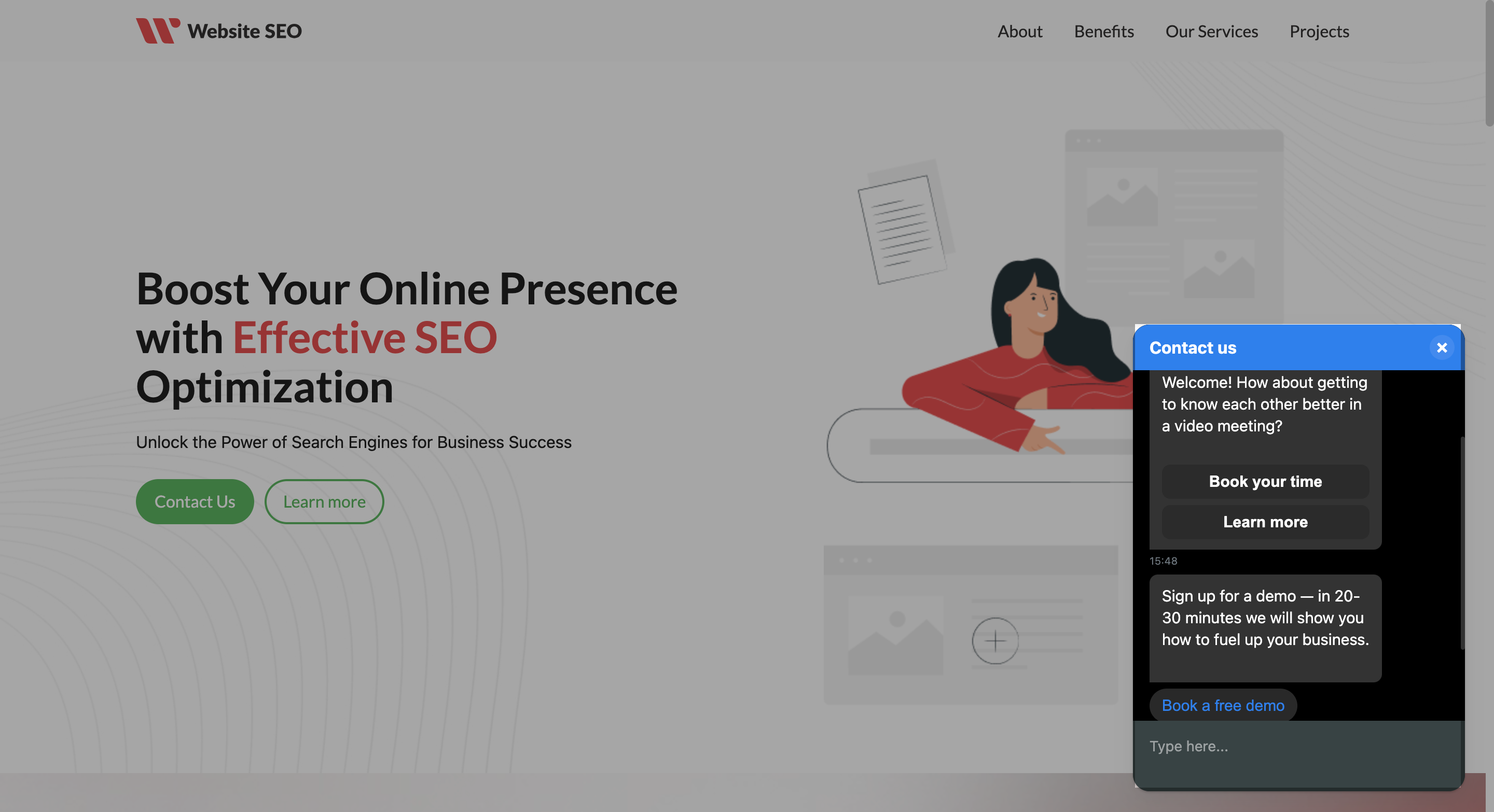
Live chat buttons and quick replies

From now on, the live chat flow builder has two new elements:

  • buttons;
  • quick replies.

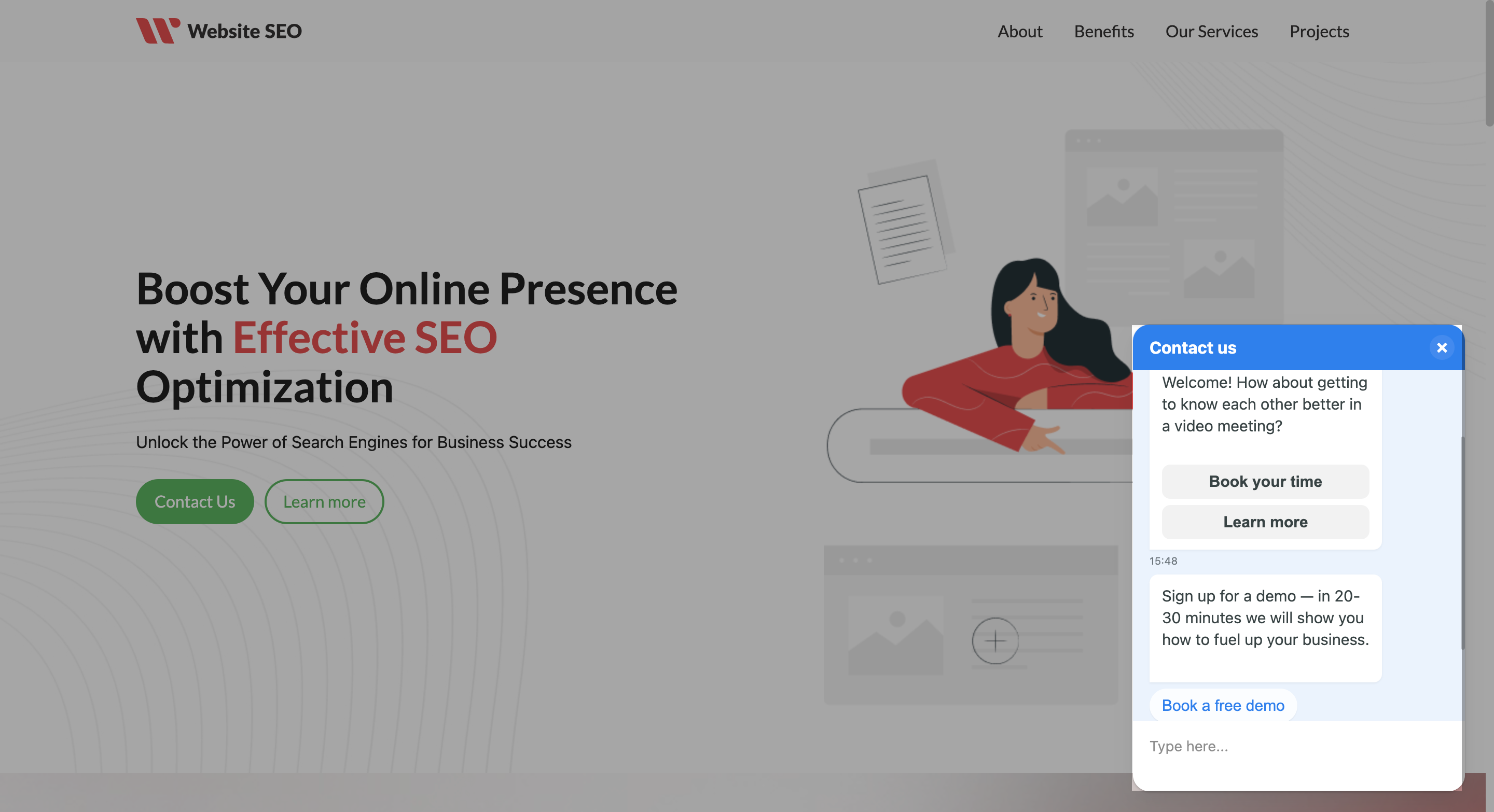
Buttons can be used to link the "Message" element to other flow elements. Your button name can include up to 20 characters, including emoji.

There are three types of buttons available: "Continue Flow," "Link," and "Payment". You can add up to three buttons to one message.

Quick replies are suggestion buttons that allow users to select from pre-existing options rather than typing out their queries manually. You can add a maximum of 10 quick replies with up to 20 characters each.

Add buttons
Tracking button click-throughs

Tracking button click-throughs

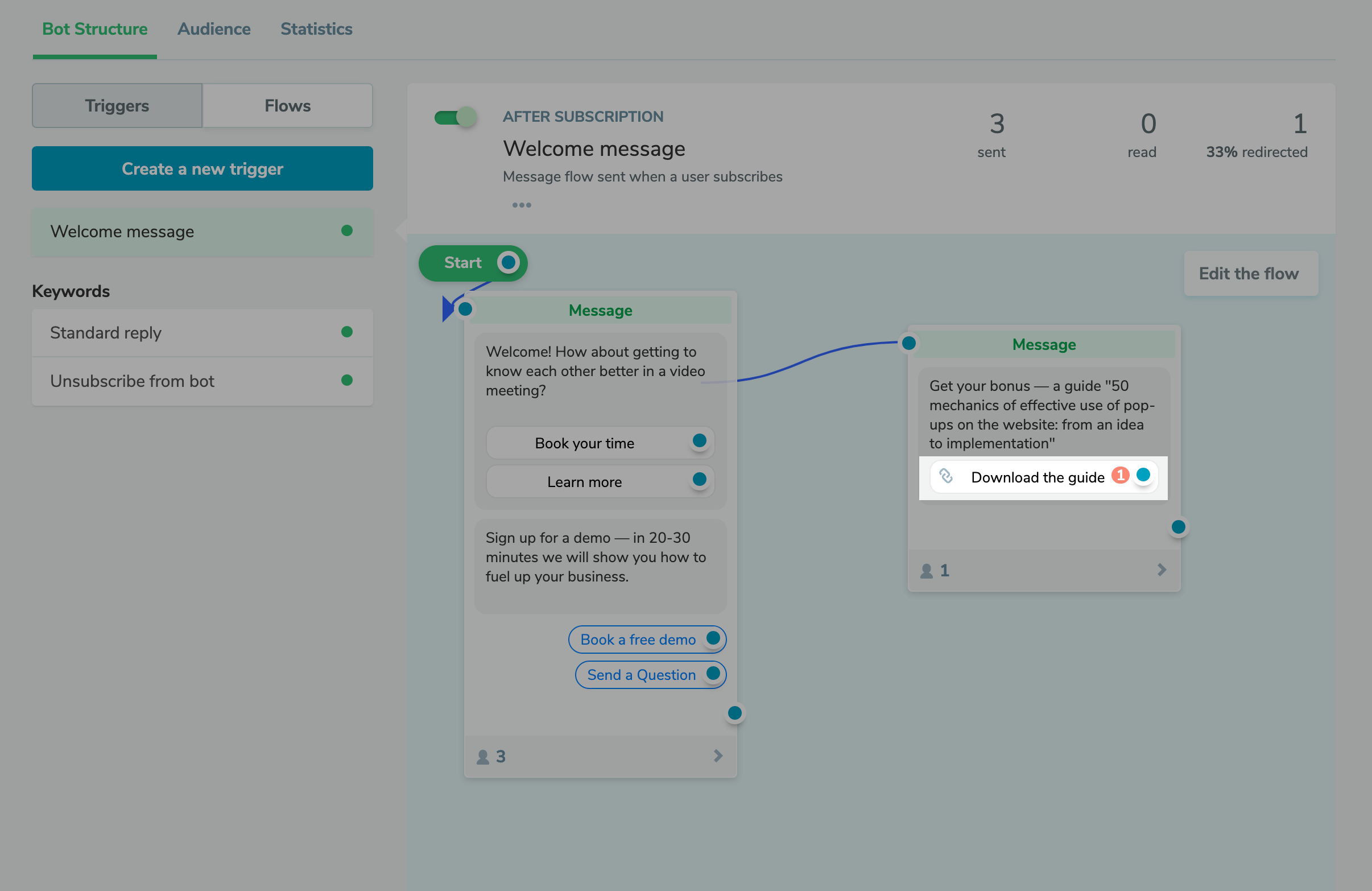
You can track your button click-throughs to thoroughly analyze how many and which subscribers followed external links. Just go to the click count to view recipient names and statuses. You can also continue your flow when a user clicks through your button.

There's no need to turn on link tracking in live chat settings.

Set up link buttons
Transferring UTM tags

Transferring UTM tags automatically

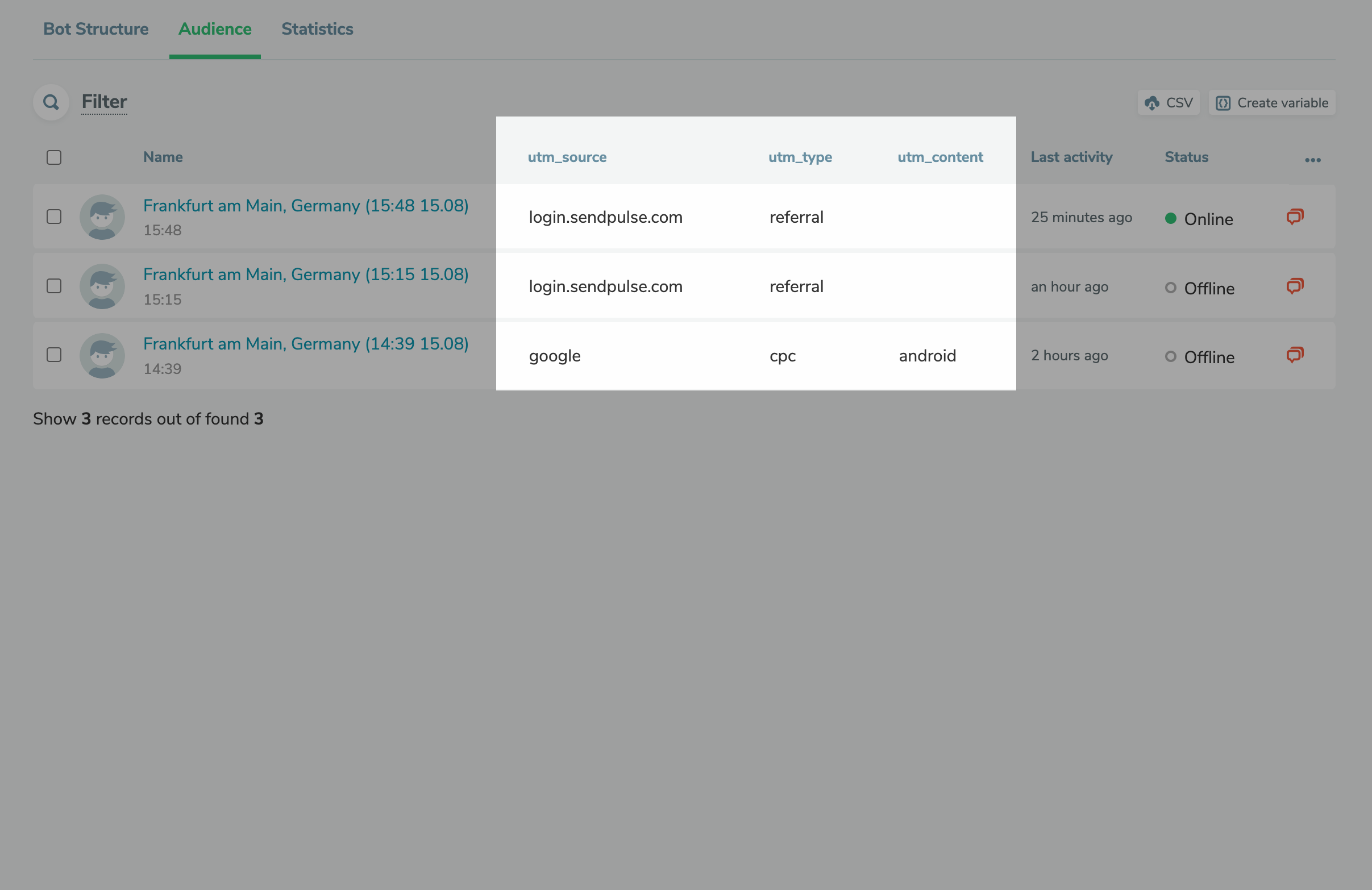
Going forward, whenever live chat contacts follow a UTM link to your website, the UTM tags will be automatically saved as variables for each contact. Based on these data points, you can create segments for more personalized and timely communication with your subscribers.

The data will be saved even if your conversation doesn't occur immediately after the initial visit through the UTM link.

To analyze UTM tags, select a relevant live chat in the corresponding tab and go to the β€œAudience” section. Corresponding variables for UTM tags will be displayed automatically. You can show or hide them by clicking on three dots in the top right corner of the contact list.

Analyze UTM tags
Dark theme

Dark theme

With the new dark theme, your website visitors will now have a better live chat experience. It replaces the bright background with a darker one, which reduces eye strain during prolonged computer use or browsing at night.

There’s no need for extra settings β€” the dark theme automatically turns on when the user’s operating system is in dark mode.

icon

If you need help with setup or have any other questions, contact our tech support team β€” we're in touch 24/7.

Best regards, Caleb Smith

sendpulse.com

You received this email because you are a customer of SendPulse.Β 

Unsubscribe

Sent via

SendPulse