✅ How to disallow website indexing and use our block gallery

Newsletter Archive
SendPulse
Disallow website indexing and copy website blocks
Caleb Smith

Caleb Smith

Product Marketer


“Let’s shed some light on how to temporarily disallow website indexing during technical maintenance and copy or save website blocks for future use.”

How to disallow website indexing

How to disallow website indexing

You can now block search engines from indexing your website while you adjust its content or structure. It will prevent any unfinished pages from appearing in search results. This option will come in handy when creating a mobile version of your website, running tests on a separate domain, performing technical maintenance, etc.

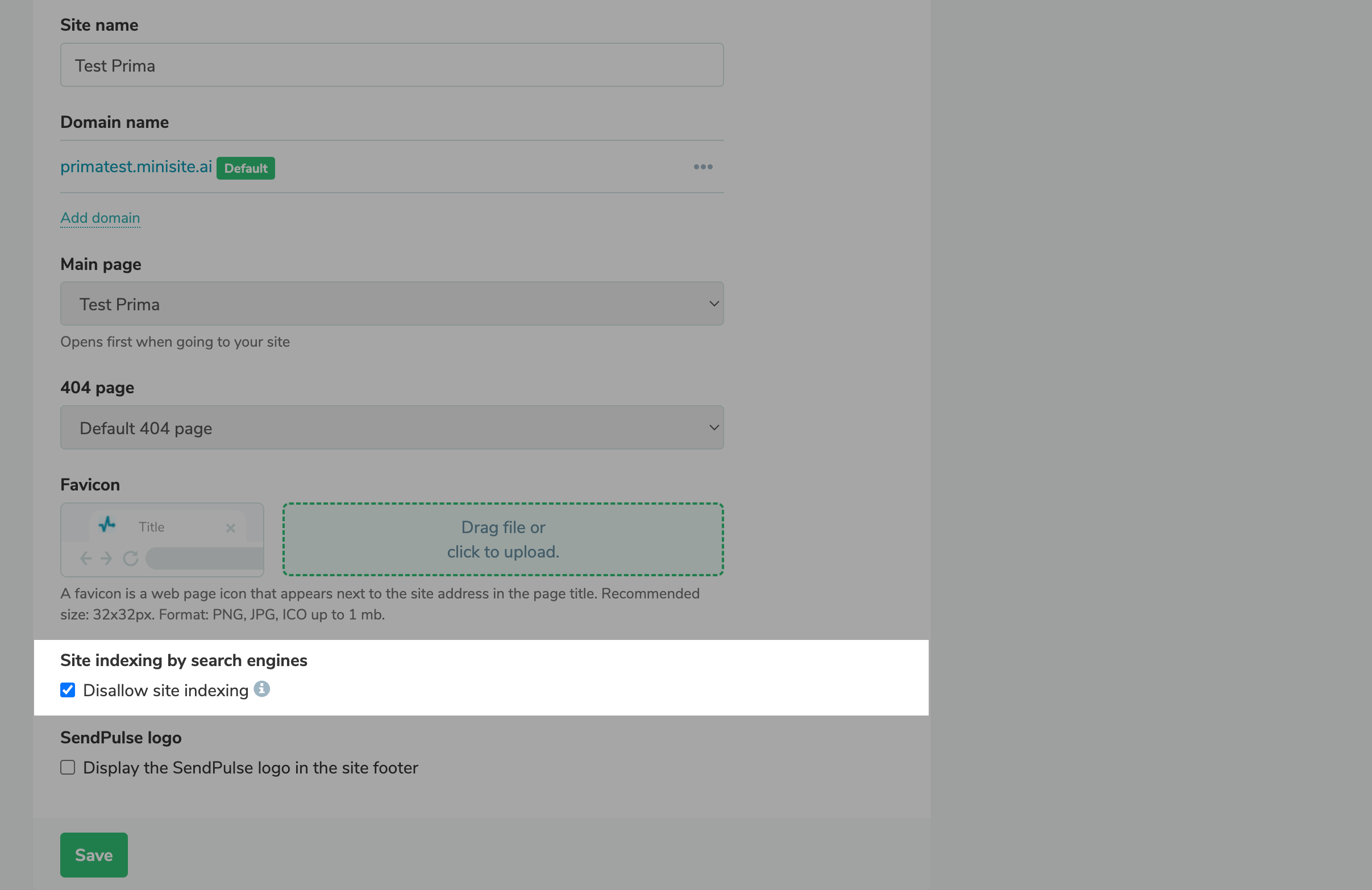
To prevent search engines from indexing your website, select the “Disallow site indexing” checkbox in your website settings.

Important note: If your website uses a custom domain, the Disallow: / entry will be added to the robots.txt file for the system domain. In other words, if you have a custom domain, the system domain of this website will be blocked from indexing.

Disallow site indexing
How to copy and save blocks

How to copy and save blocks

Once you have set the style for a specific block, you can:

  • copy and paste it on the current page;
  • copy it to other pages;
  • save it to the gallery to use as a template.

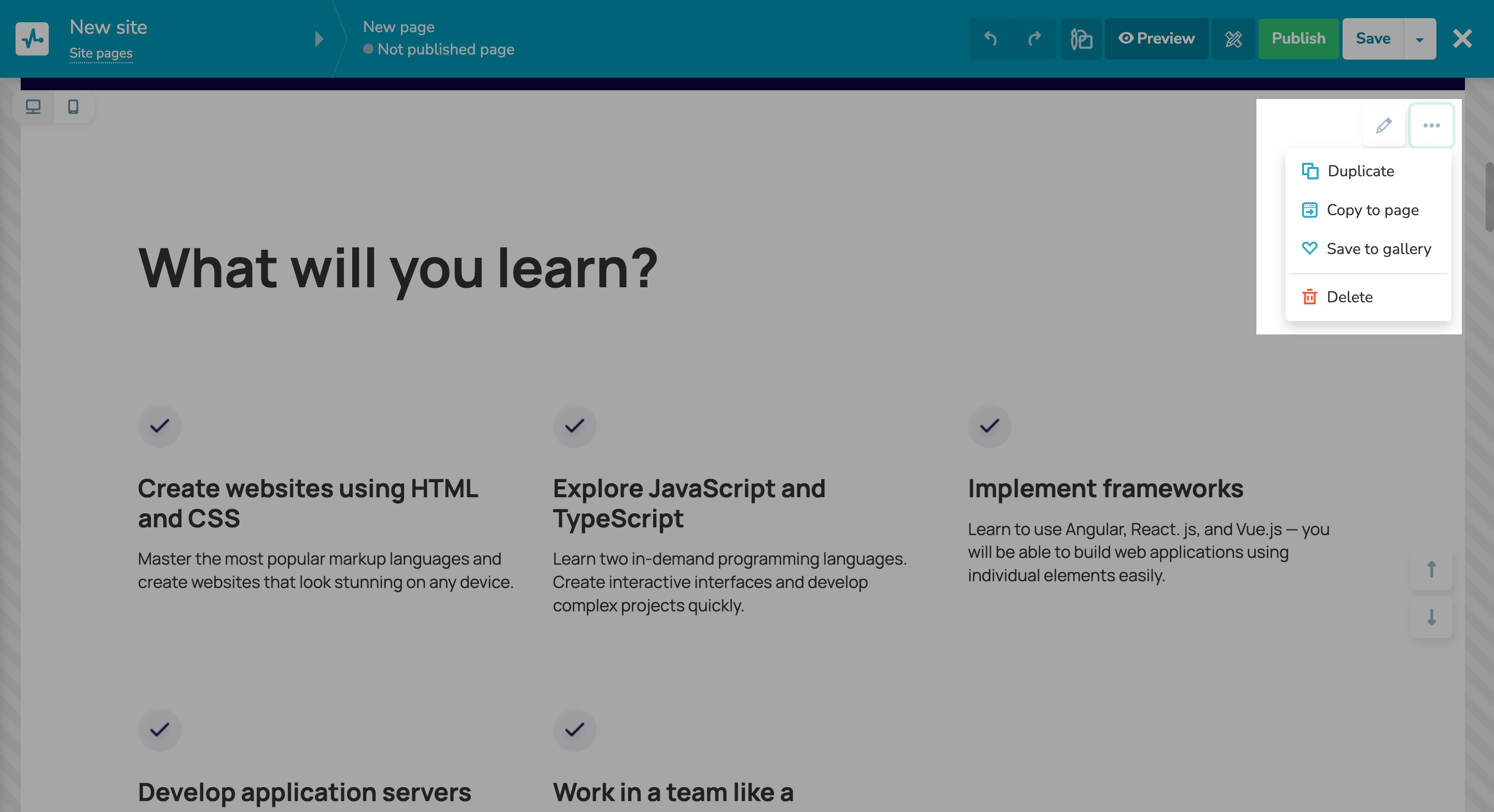
To copy any block, click the three dots in the top right corner and select “Duplicate.”

To place a previously saved block from the gallery, click “Add block” on any preferred website section and select the element from the “Saved” section.

Set up website blocks
icon

If you need help with setup or have any other questions, contact our tech support team — we're in touch 24/7.

Best regards, Caleb Smith

sendpulse.com

You received this email because you are a customer of SendPulse

Unsubscribe

Sent via

SendPulse