🎓 3 course platform updates

Newsletter Archive
SendPulse
Email & EDU
Caleb Smith

Caleb Smith

Product Marketer


"Email is a key channel for expert communication with online course students. Notifications, reminders, invitations to other courses play an important role in promoting and engaging the audience.

To make expert communication with students more convenient and faster, we have integrated a platform for creating online courses and an email service. You no longer need to export a list of students to create an address book for mailing — it is enough to select the course, progress and tags of students, and the system will automatically transfer email addresses to the mailing service. Read on for more details about this and other updates."

EDU email campaign

Integrate online course platform and email service

To send an email to students, follow these steps:

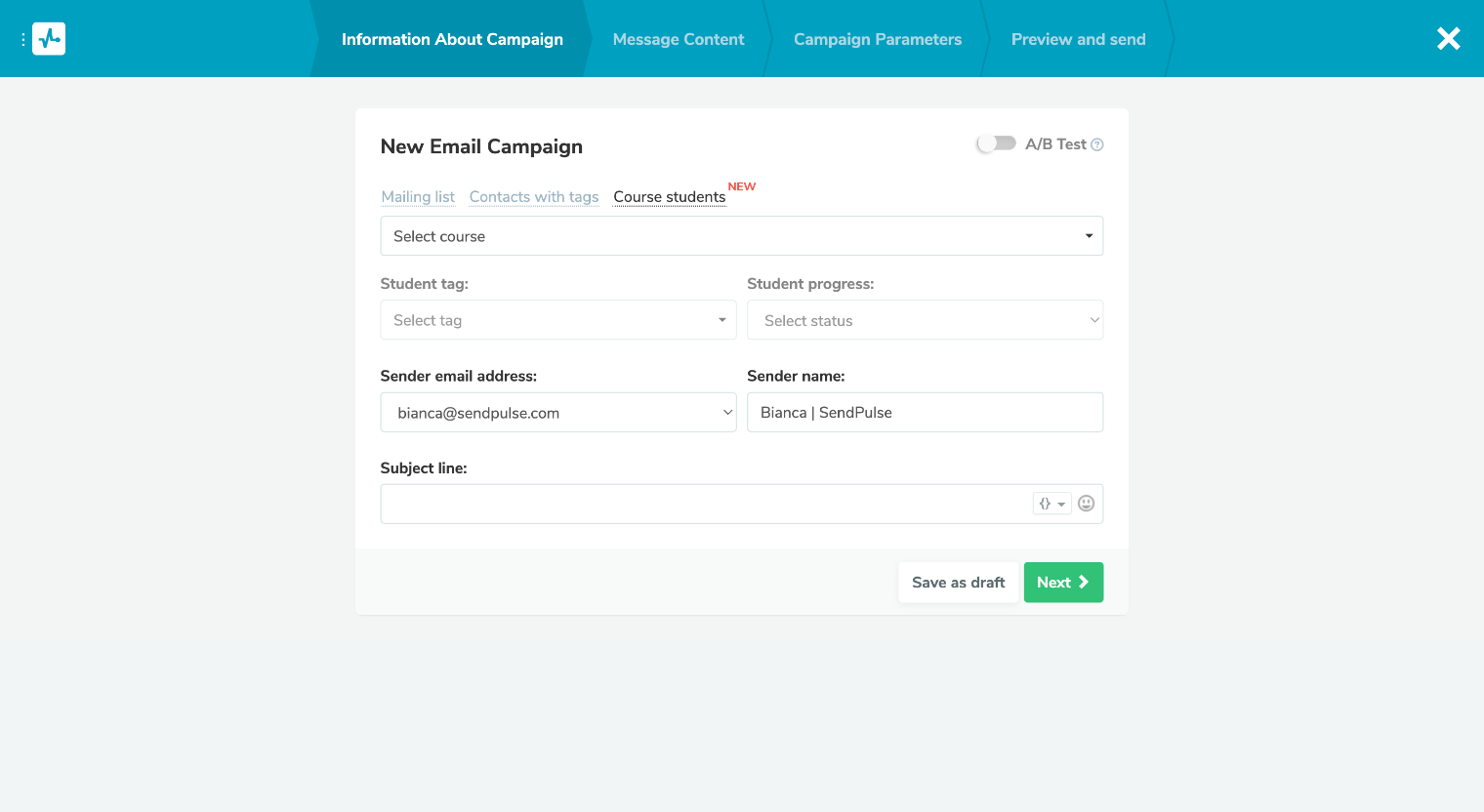
  1. Go to the Mailings tab and select Create Mailing.
  2. Select the course whose students should receive the newsletter, tag, and student progress. You can combine multiple courses, tags, and progress types in one newsletter.
  3. Add a sender, subject, and email template.

Read more about sending email newsletters in the knowledge base.

Create mailings for course students
Personal certificate upload

Personal certificates

Previously, all students of the course received the same certificate upon successful completion of their studies. The experts independently created it in the SendPulse designer: they adjusted the content, appearance and delivery conditions.

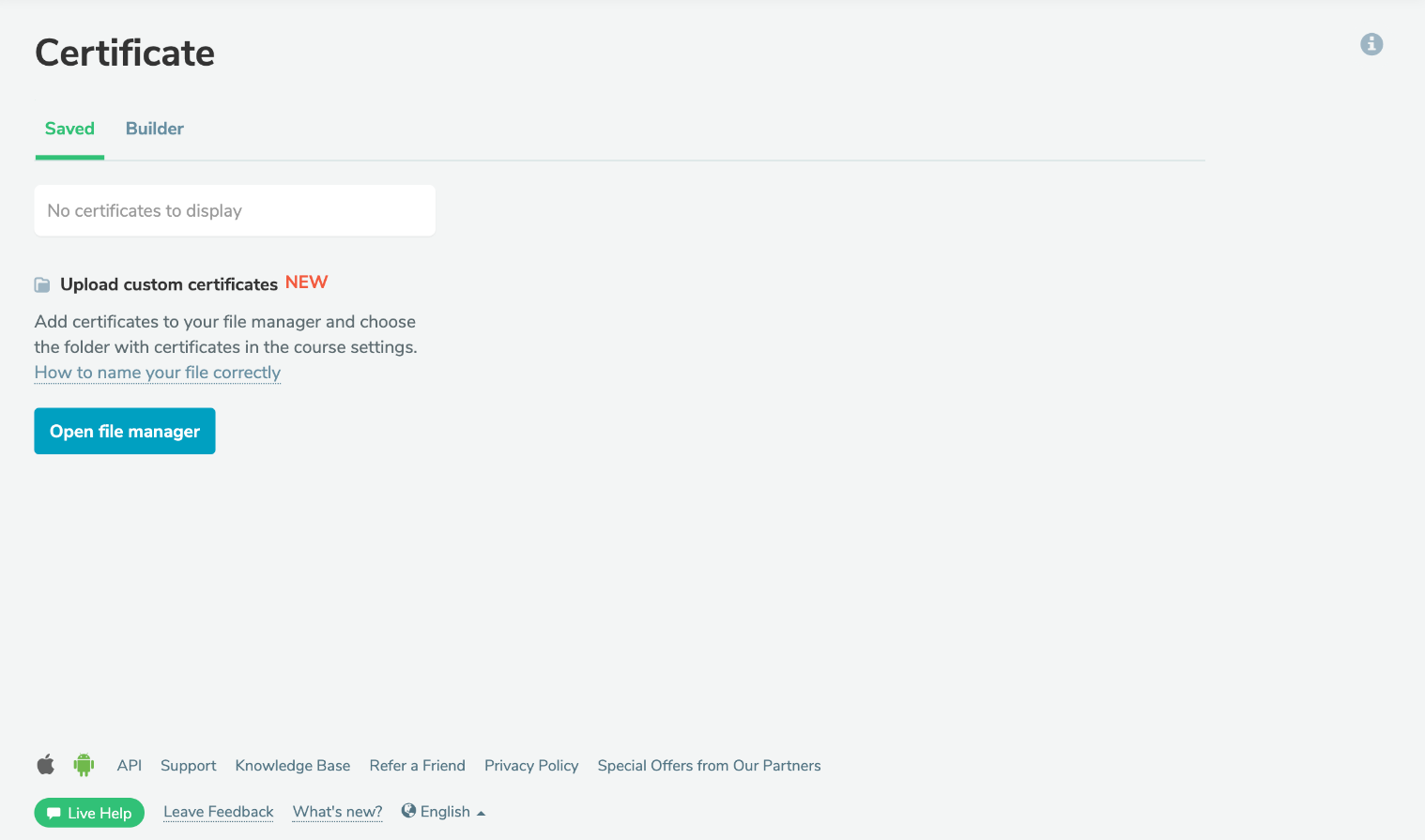
With SendPulse, you can upload a unique certificate:

  • Create a design in any third-party program that is convenient for you.
  • Save as PNG or PDF.
  • Upload a personal certificate for each student.

It is important to name the files correctly so that upon completion of studies the students will see his certificate in their personal account.

How to edit and upload unique user certificates is outlined in the knowledge base.

Upload unique certificate
Disable numbering

Disabling the numbering of sections and lessons in the courses

Due to numerous requests, we have added the option to disable the numbering of chapters and lessons in courses.

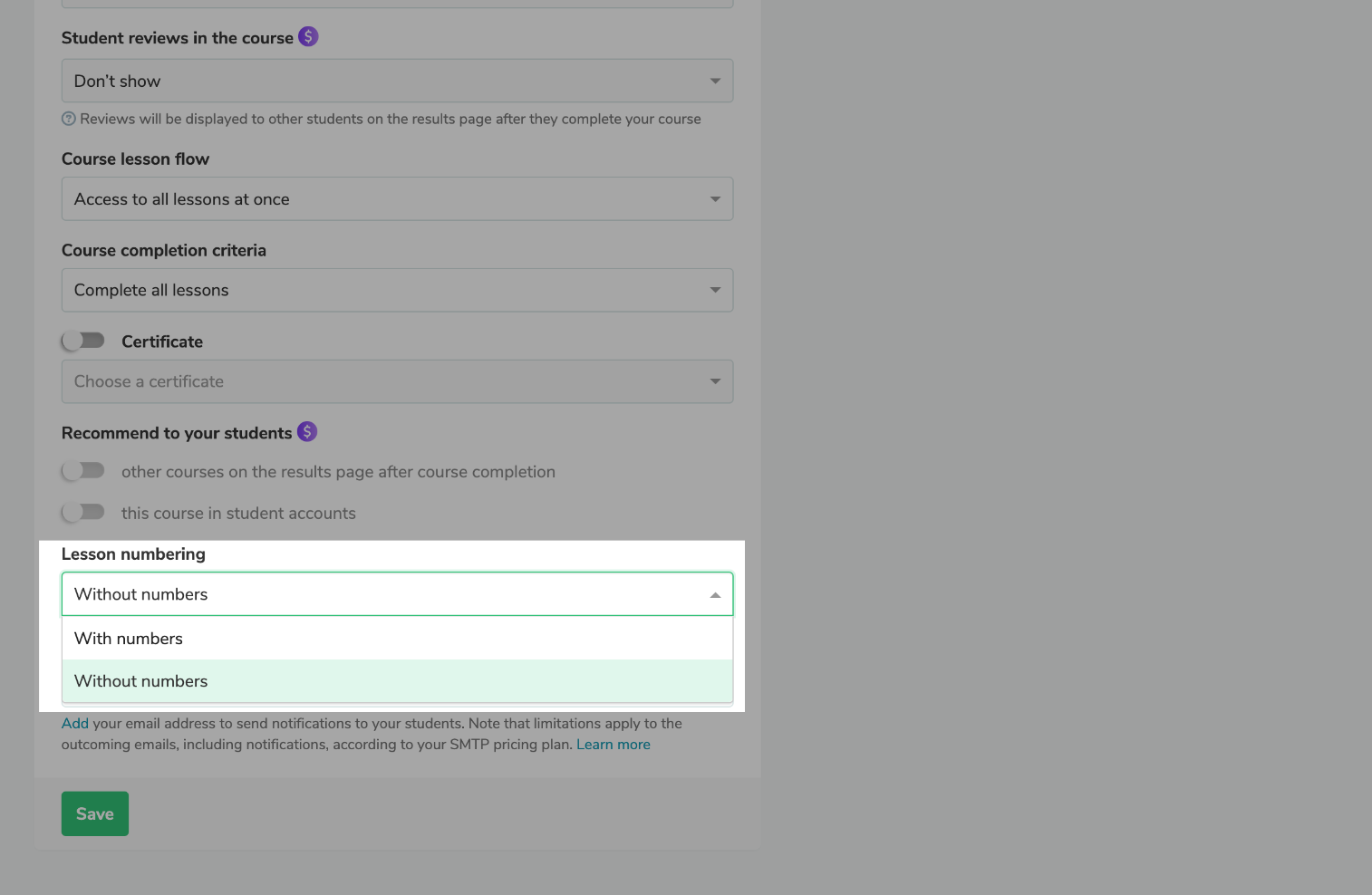
To disable numbering, select "Do not number" for the "Lesson numbering" option in the course settings. After that, the list of lessons and sections will be displayed without numbering in the lesson designer and the student's office.

Disable numbering
icon

If you need help with setup or have any other questions, contact our tech support team — we're in touch 24/7.

Best regards, Caleb Smith

sendpulse.com

You received this email because you are a customer of SendPulse. 

Unsubscribe

Sent via

SendPulse